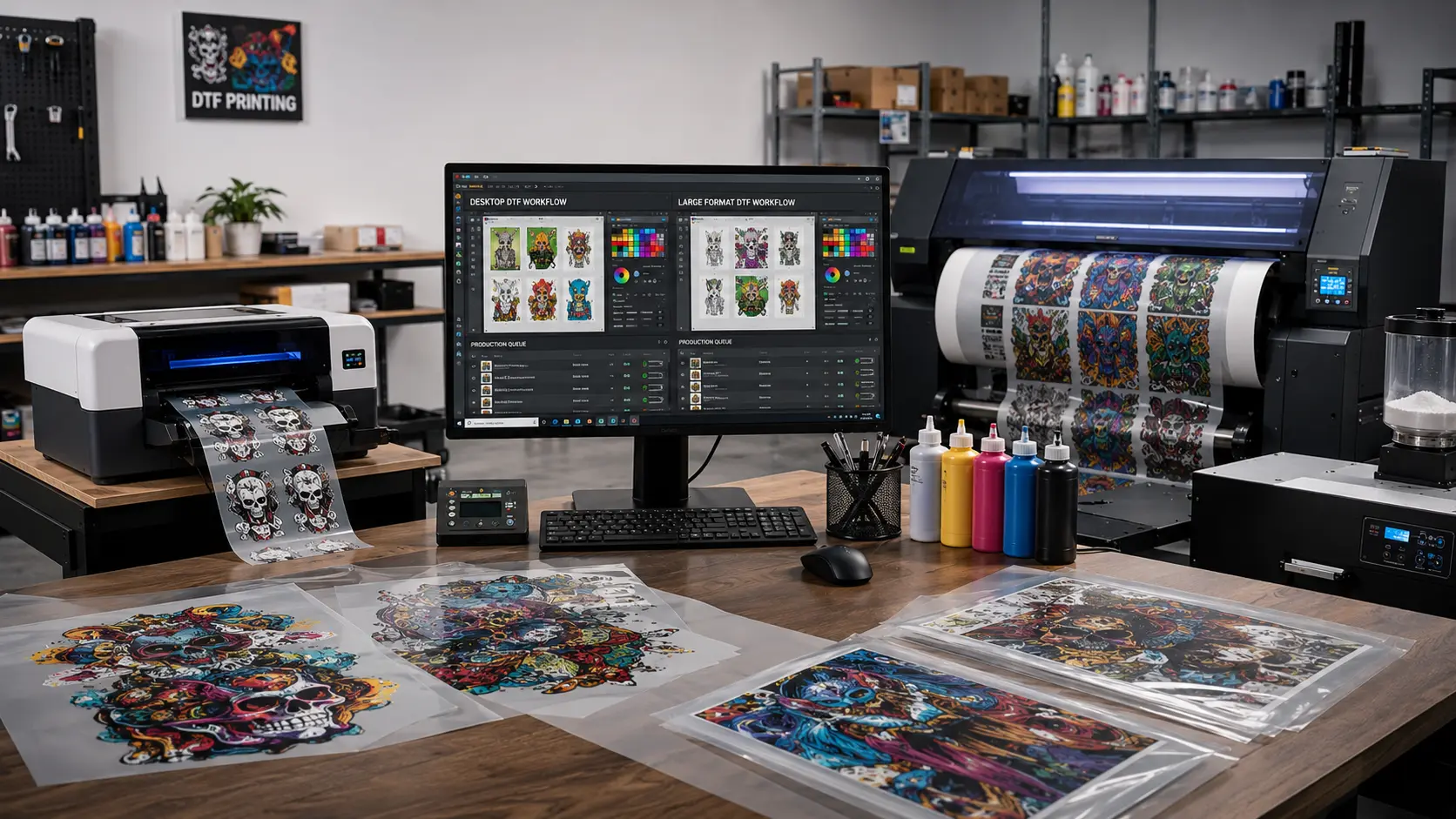

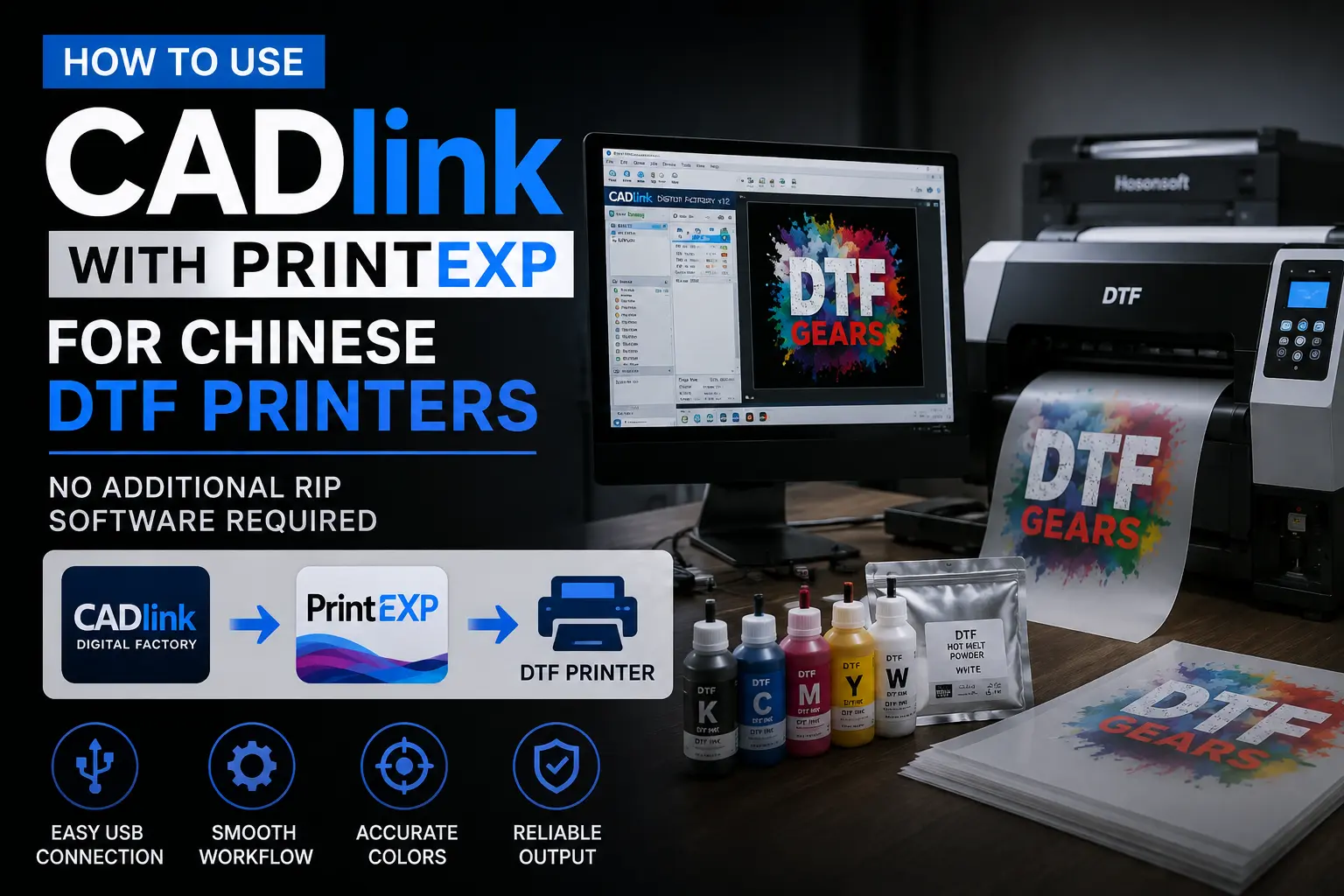
If you have a Chinese DTF printer that uses PrintEXP and want to use CADlink Digital Factory as your RIP, you can connect the two without using additional RIP software.
This guide explains what to do after completing our USB driver connection setup and how to troubleshoot some of the most common PrintEXP errors.
Important: You only need CADlink Digital Factory + PrintEXP. You do not need another RIP software between CADlink and PrintEXP.
In addition to printexp, you can use the same procedure with the following common printing software that came with your printer:
| Software | Company / ecosystem | What it does | Typical relationship to RIP |
| PrintEXP | Hosonsoft | Printer control, calibration, output | RIP → PrintEXP → printer |
| PrinterManager | Beijing / certain Chinese printer boards | Printer control & output | RIP → PrinterManager → printer |
| ATools Pro | Senyang | Printer control & calibration | RIP → ATools Pro → printer |
| PrintExp variants | Hosonsoft | Different versions for DTF/UV/eco-solvent etc. | RIP → PrintEXP |
| Manufacturer-modified PrintEXP | Various Chinese printer manufacturers | Same underlying Hoson system customized for machine | RIP → modified PrintEXP |
Before You Start: Keep PrintEXP Running
While setting up CADlink according to our USB Driver connection tutorial, make sure that PrintEXP is still running.
Please use the Universal controller driver to connect Cadlink to printexp, here is the link to DTFGEARS video:
DTFGEARS – How to connect any Chinese printer with DigitalFactory
Important note
In the above video use the Universal Desktop Driver for printers with width upto 17 inches and Universal Controller Driver for printers which can print upto 24 inches
Do not use the universal plus drivers
BUY NOW CADLINK DIGITAL FACTORY [DESKTOP EDITION]
BUY NOW CADLINK DIGITAL FACTORY [WIDE FORMAT]
Once the connection between CADlink and your Chinese printer has been established, you can send your print job from CADlink through PrintEXP to the printer.
You Only Need CADlink and PrintEXP
There is no need to install or run another RIP software.
The basic workflow is:
CADlink Digital Factory → PrintEXP → Chinese DTF Printer
CADlink Is Connected, But the Printer Still Isn’t Printing?
If you have followed the connection instructions and CADlink appears to be connected but the printer does not start printing, check PrintEXP before changing your CADlink settings.
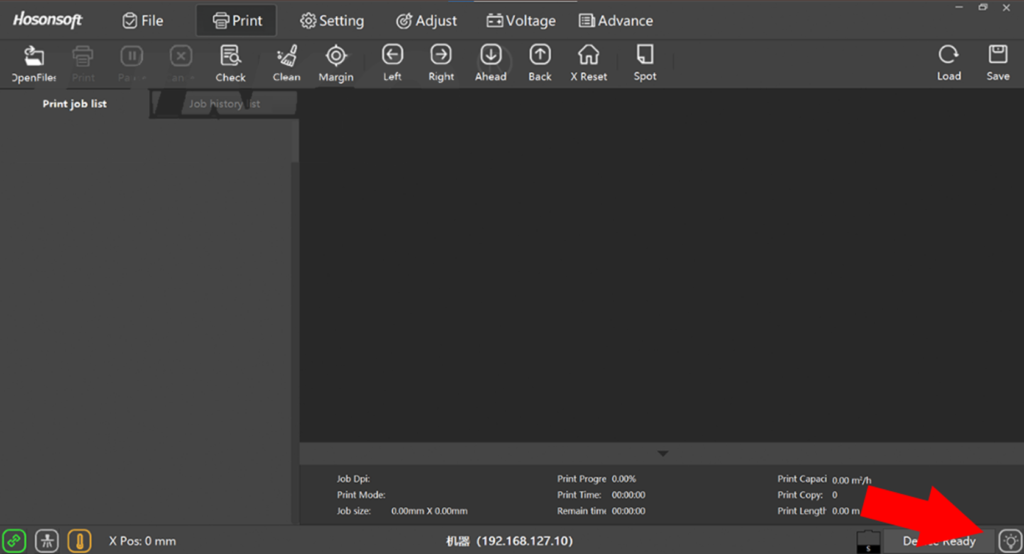
PrintEXP has a bulb-shaped icon in the bottom-right corner that can indicate errors or problems preventing the printer from accepting the job. Please check the image below:
Click/check this indicator to see whether PrintEXP is reporting an error.
In many cases, the problem is not the CADlink connection itself. PrintEXP may simply be rejecting the job because of a mismatch in the print settings.
Two Common PrintEXP Errors
There are two errors that commonly prevent a job from being printed.
1. Paper Size Is Too Large
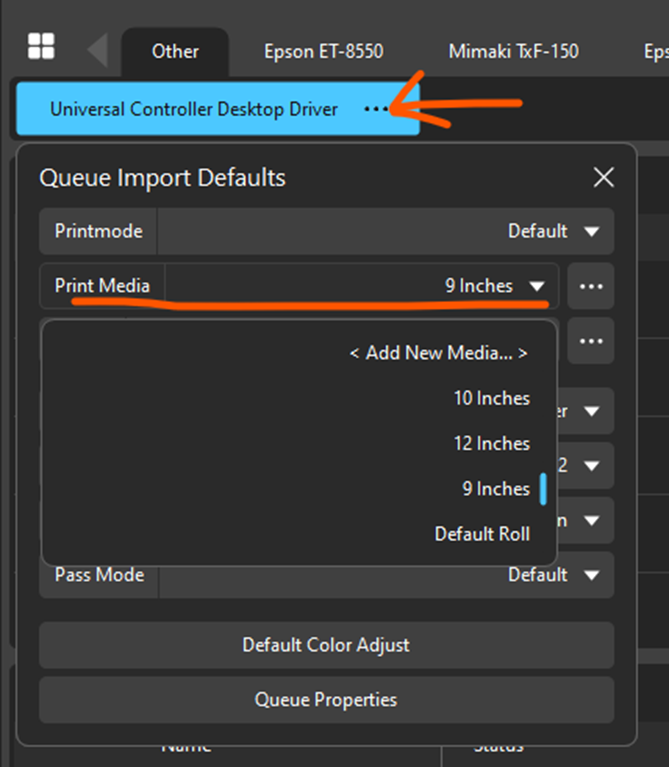
One common error is that the paper/media size specified in CADlink is larger than the size accepted by PrintEXP or the printer’s current setup.
If PrintEXP reports that the paper size is too large, you can adjust the paper size directly in CADlink.
Check the image below:
Change the paper size in CADlink to match the size supported by your printer and PrintEXP configuration.
After changing the setting, try importing and sending the job again.
2. The Print Mode Is Different
The second common issue is a print mode mismatch.
PrintEXP may be configured for one print mode while CADlink is sending the job using another.
If PrintEXP reports an error relating to the print mode, don’t worry. Contact us and we can try to help you fix the print mode settings for your particular printer.
Still Having Problems?
If you have followed the USB driver connection instructions, kept PrintEXP running, and checked the PrintEXP error indicator but your printer still isn’t printing, let us know what error you are seeing.
Chinese printers can use different controller boards, printheads, print modes and PrintEXP configurations, so the exact solution can depend on your particular printer setup.
We can help you troubleshoot the issue and determine what needs to be changed.
Get CADlink Digital Factory
If you’re ready to replace your existing RIP with CADlink Digital Factory, you can purchase CADlink directly from us.
CADlink Digital Factory Desktop Edition
Best suited for users who need a powerful RIP solution for a standard desktop/workstation setup.
CADlink Digital Factory Wide Format Edition
[ CADLINK WIDE FORMAT PURCHASE]
Designed for users working with wider-format printing equipment and workflows.
August Sale: Our current CADlink software sale will end before the end of August, so make sure to take advantage of the promotional pricing before the sale ends.