
If your CADlink Digital Factory DTF RIP Software is printing only CMYK colors and skipping the white underbase, you’re not alone. White ink printing issues are among the most common DTF RIP software problems. Fortunately, most cases are caused by incorrect settings, artwork preparation, or printer configuration rather than a software fault.
Below are the most common questions users ask and their solutions.
Why Is My White Ink Not Printing in CADlink Digital Factory DTF RIP?
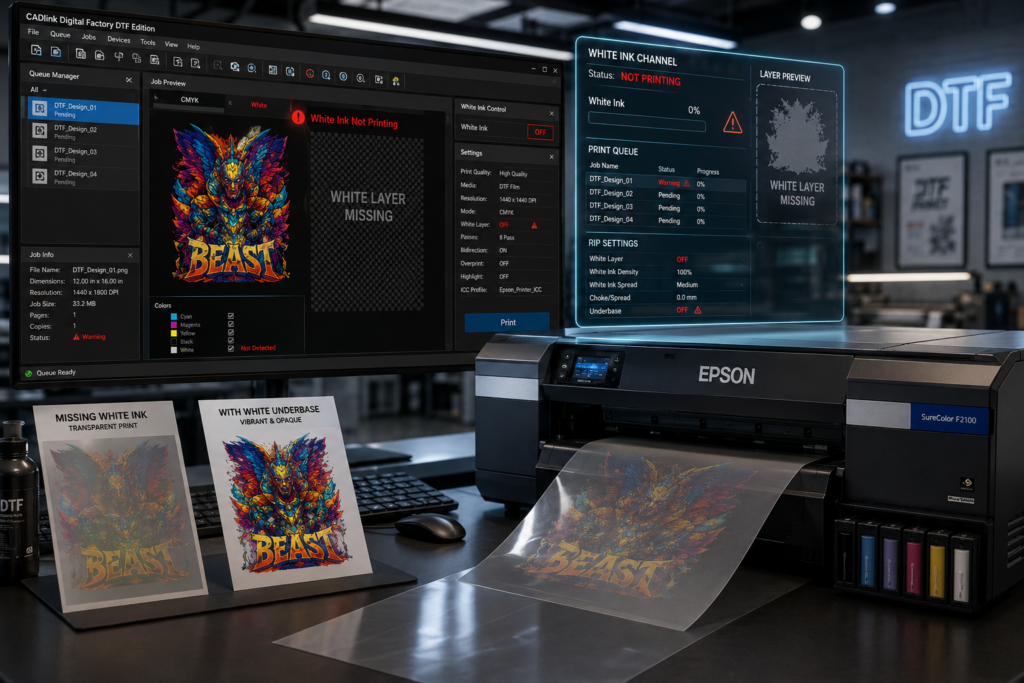
The most common reason is that white underbase generation is disabled within the RIP software.
When this happens, the RIP processes only the CMYK colors and completely ignores the white ink channel.
How to Fix It
- Enable White Underbase Generation
- Turn on the White Ink Channel
- Verify that the white layer is visible in the RIP preview
- Save the updated printer preset before printing
Why Is the White Underbase Missing Even Though the Artwork Looks Fine?
If the artwork appears correct but prints without white ink, the problem is often related to the printer profile.
Every supported DTF printer requires the correct CADlink printer profile to properly assign the white ink channel.
Check the Following
- Correct printer model is selected
- Appropriate ICC/profile is installed
- White ink channels are mapped correctly
- Ink configuration matches your printer
Using the wrong profile can prevent white ink from being generated.
Can Incorrect Artwork Cause White Ink Not to Print?
Yes. Artwork preparation plays a major role in white layer generation.
Transparent or improperly prepared files may not generate an underbase correctly.
Best Practices
- Use high-quality PNG files with transparency
- Export artwork correctly
- Avoid flattened images when transparency is required
- Ensure the artwork contains a valid alpha channel
- Use vector files whenever possible
Why Is My White Ink Printing Very Faint?
Sometimes the white layer exists but is too light to provide proper opacity.
This usually happens because the white density settings are too low.
Solution
Increase the following settings in CADlink:
- White Ink Density
- Underbase Strength
- White Opacity
- Choke Settings
A stronger underbase produces brighter colors and better coverage on dark garments.
Can Mirror Settings Affect White Ink Printing?
Yes.
Since DTF printing requires mirrored artwork before transfer, incorrect mirror settings may interfere with white layer generation.
Verify That
- Mirroring is enabled correctly
- White underbase is generated after mirroring
- Print order matches your printer’s requirements
Why Does the RIP Show White Ink but the Printer Doesn’t Print It?
If the RIP preview clearly displays the white layer but the printer skips it, the issue is usually communication-related.
Possible causes include:
- USB connection problems
- Network interruptions
- Print spooler errors
- Driver communication failures
Recommended Steps
- Restart CADlink
- Restart the printer
- Clear the print queue
- Restart the computer
- Reconnect the printer
Could My Printer Hardware Be Causing the White Ink Issue?
Absolutely.
Sometimes CADlink generates the white layer correctly, but the printer cannot deliver the white ink.
Common hardware issues include:
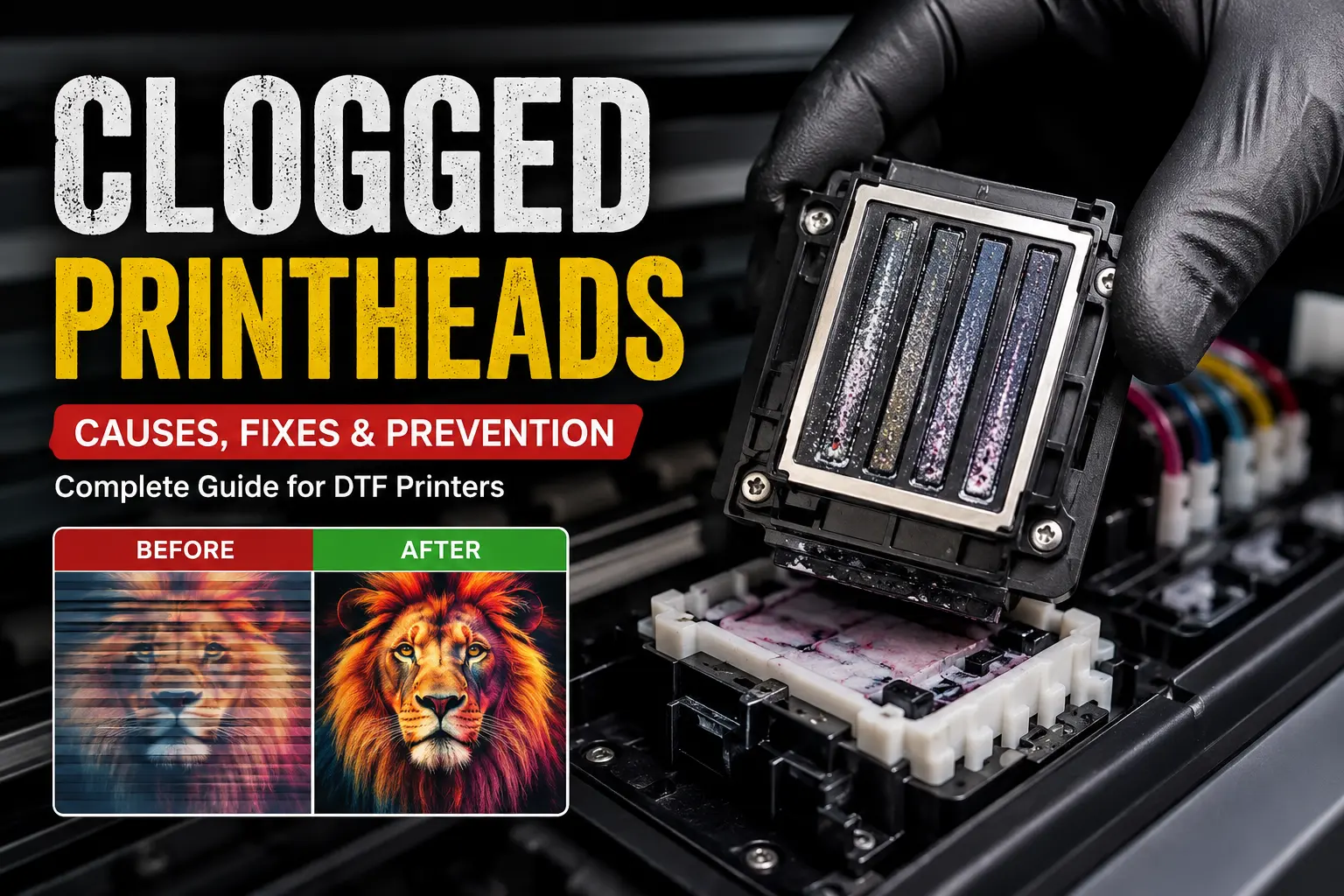
- Clogged printheads
- White ink settling
- Air in the ink lines
- Blocked dampers
- Ink circulation problems
Perform Basic Maintenance
- Run a nozzle check
- Clean the printhead
- Agitate the white ink
- Check the circulation system
- Inspect dampers and ink lines
Does an Outdated Version of CADlink Cause White Ink Problems?
Older versions of CADlink may contain bugs or outdated printer profiles that affect white ink generation.
Updating to the latest version provides:
- Improved printer compatibility
- Better white layer generation
- Performance improvements
- Bug fixes
- Support for newer DTF printers
How Can I Quickly Troubleshoot White Ink Printing Issues?
Before assuming there’s a hardware failure, go through this checklist:
- ✔ Run a nozzle check
- ✔ Verify the printer can print white ink manually
- ✔ Confirm White Underbase is enabled
- ✔ Check the printer profile
- ✔ Preview the white layer inside CADlink
- ✔ Test with a different artwork file
- ✔ Restart the RIP software
- ✔ Update CADlink to the latest version
- ✔ Perform printer maintenance if necessary
How Can I Prevent White Ink Problems in the Future?
Regular maintenance and correct software settings can prevent most white ink issues.
Best Practices
- Shake white ink daily
- Perform nozzle checks regularly
- Keep CADlink updated
- Use genuine printer profiles
- Clean the printhead routinely
- Back up your working RIP presets
- Use high-quality artwork files
When Should I Contact Technical Support?
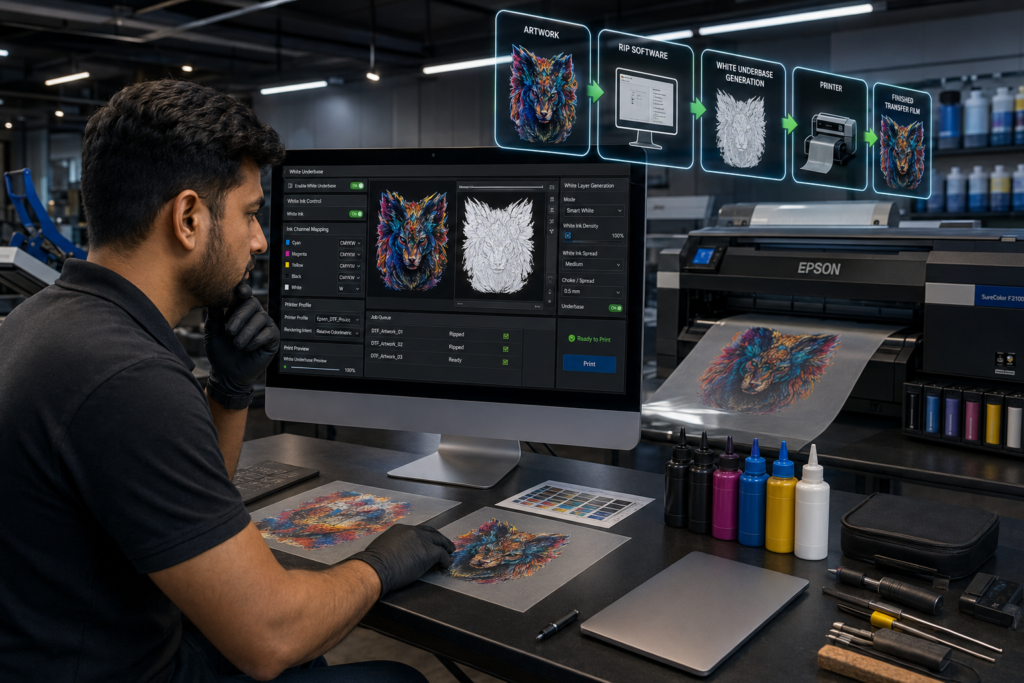
If the white layer appears correctly in the RIP preview, all software settings are correct, and the printer still refuses to print white ink, the issue is likely hardware-related.
At that stage, inspect or replace components such as:
- Printhead
- Dampers
- Ink lines
- White ink circulation system
- Capping station
- Mainboard
If you’re using CADlink Digital Factory DTF RIP Software from DTF Gears, our technical support team can help diagnose whether the problem is software configuration or printer hardware, reducing downtime and getting your production back on track.