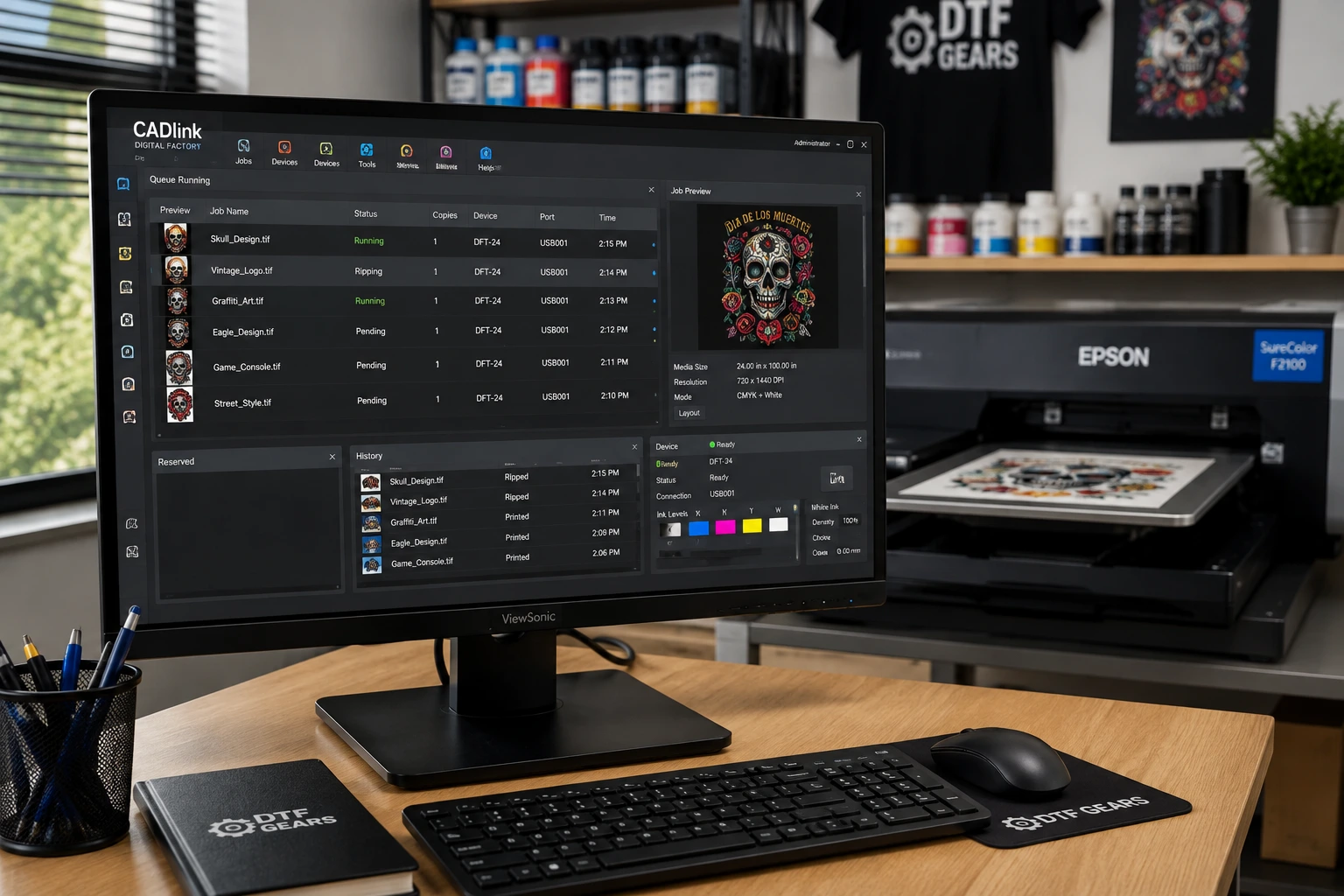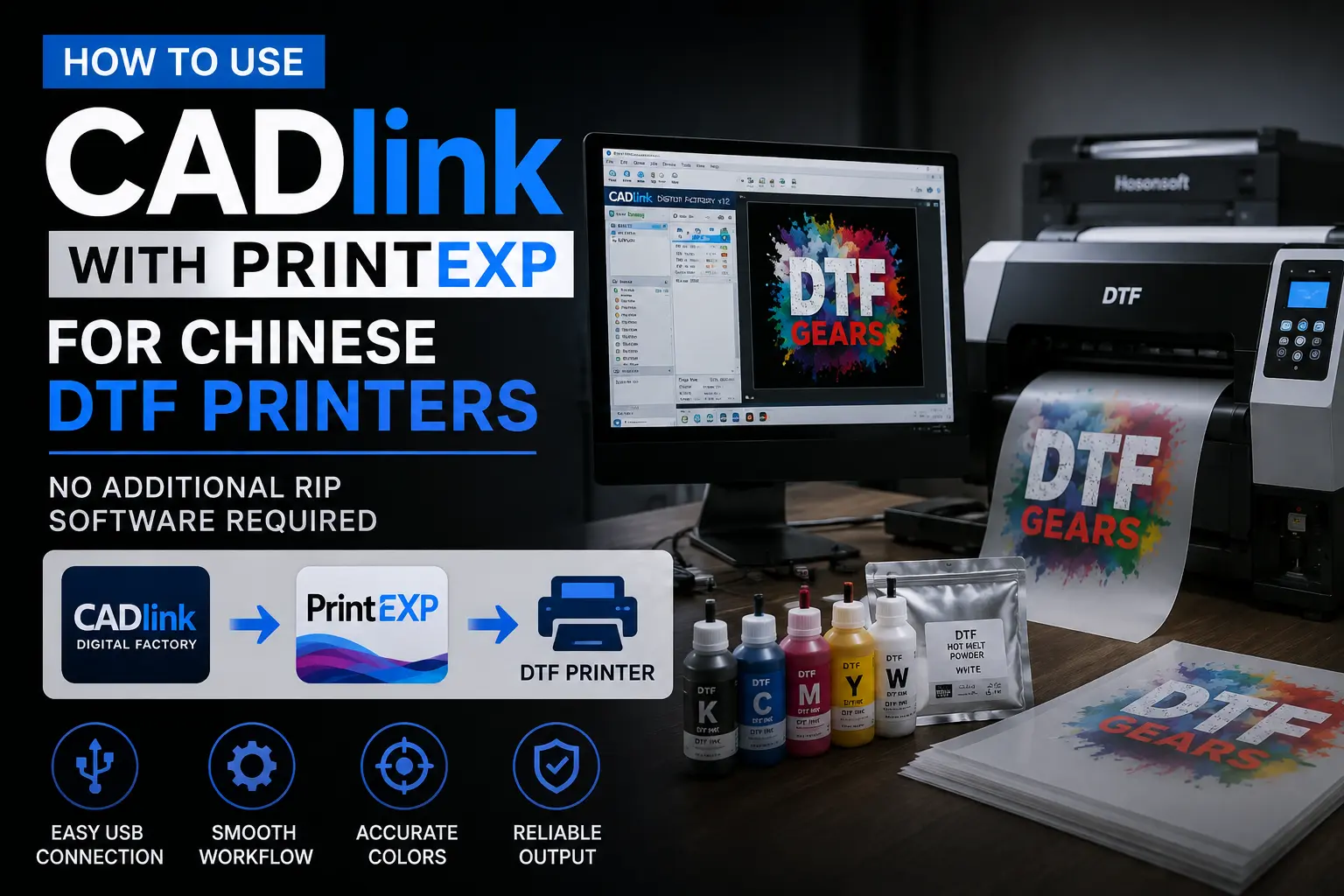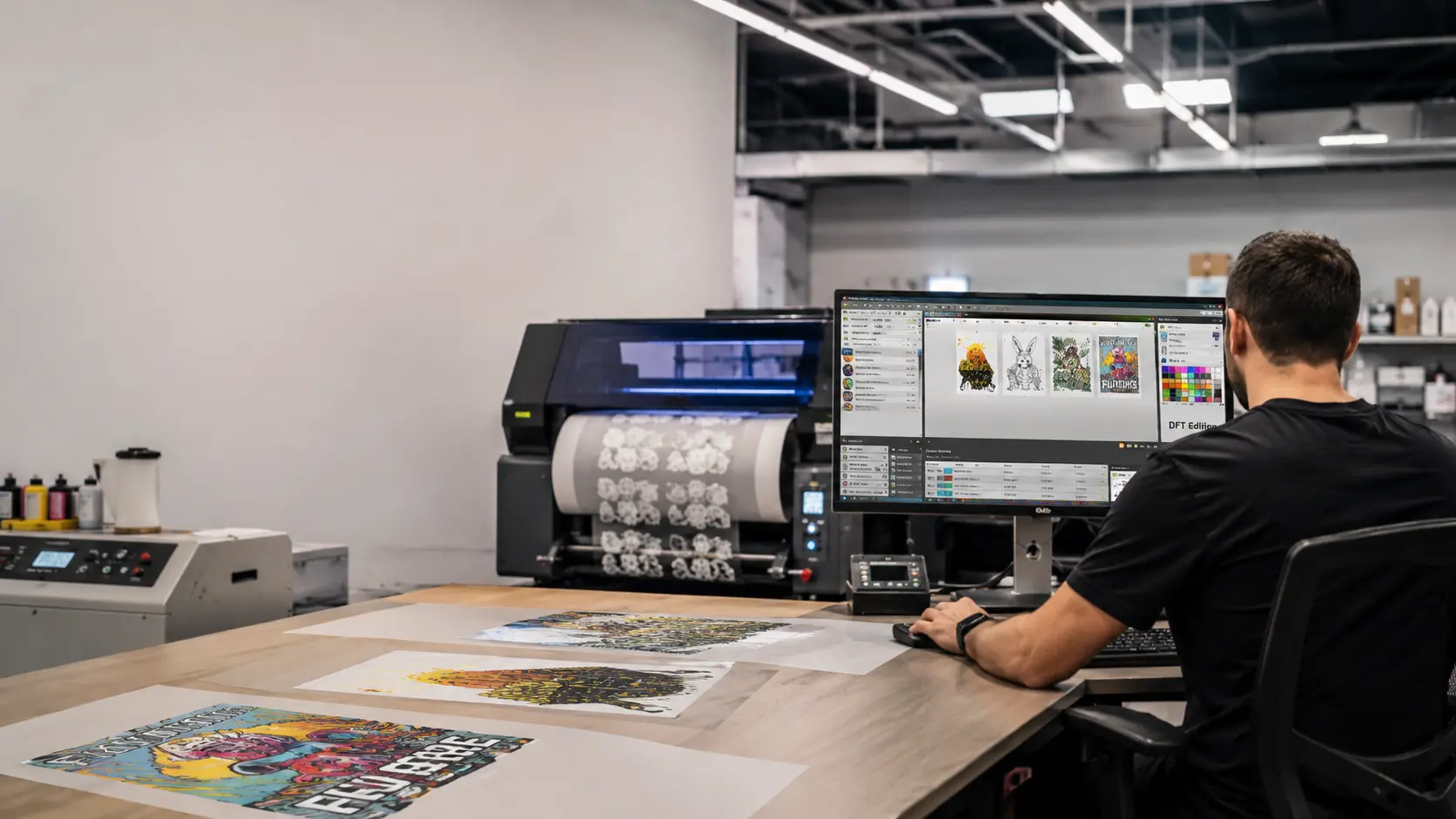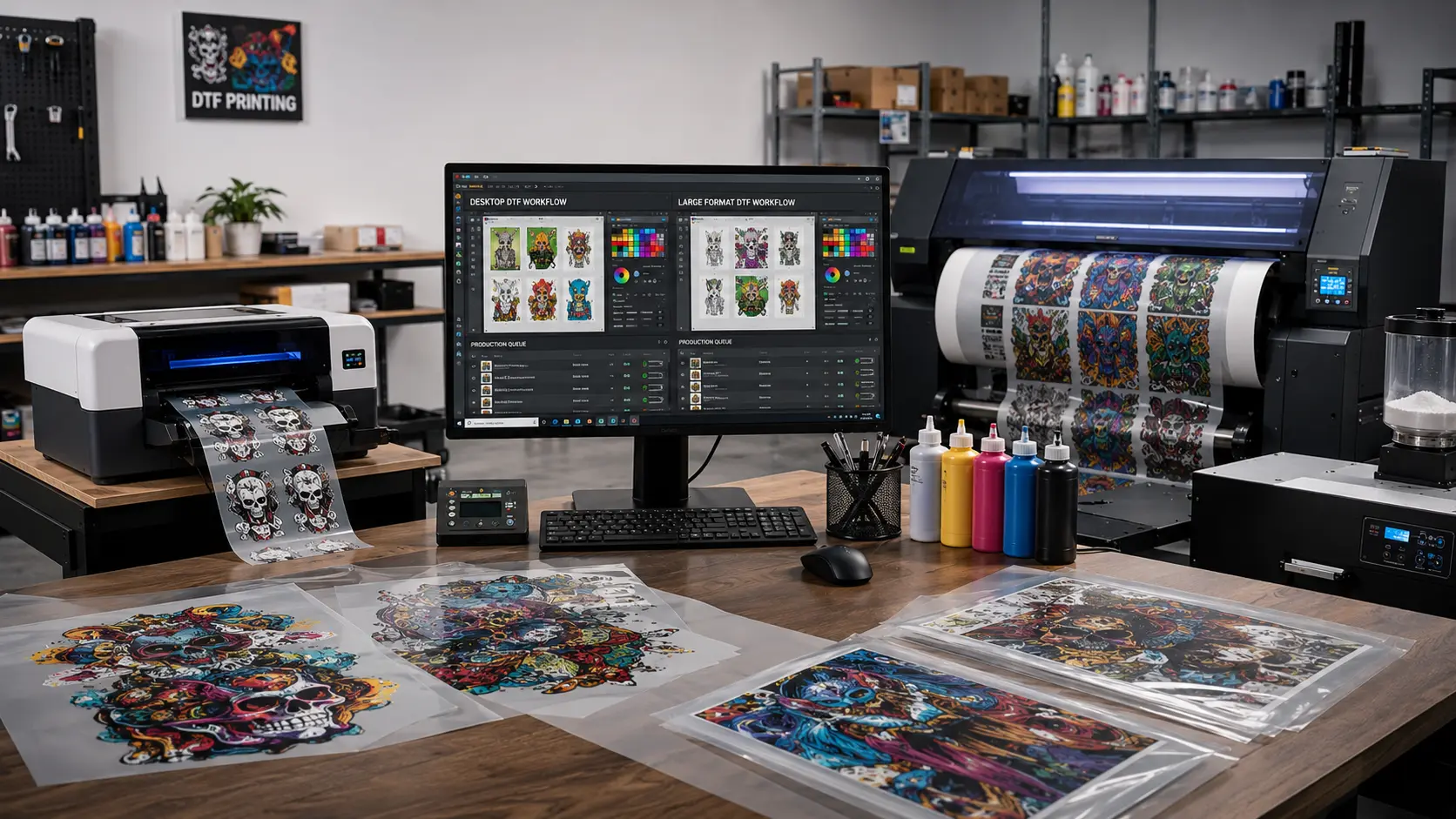

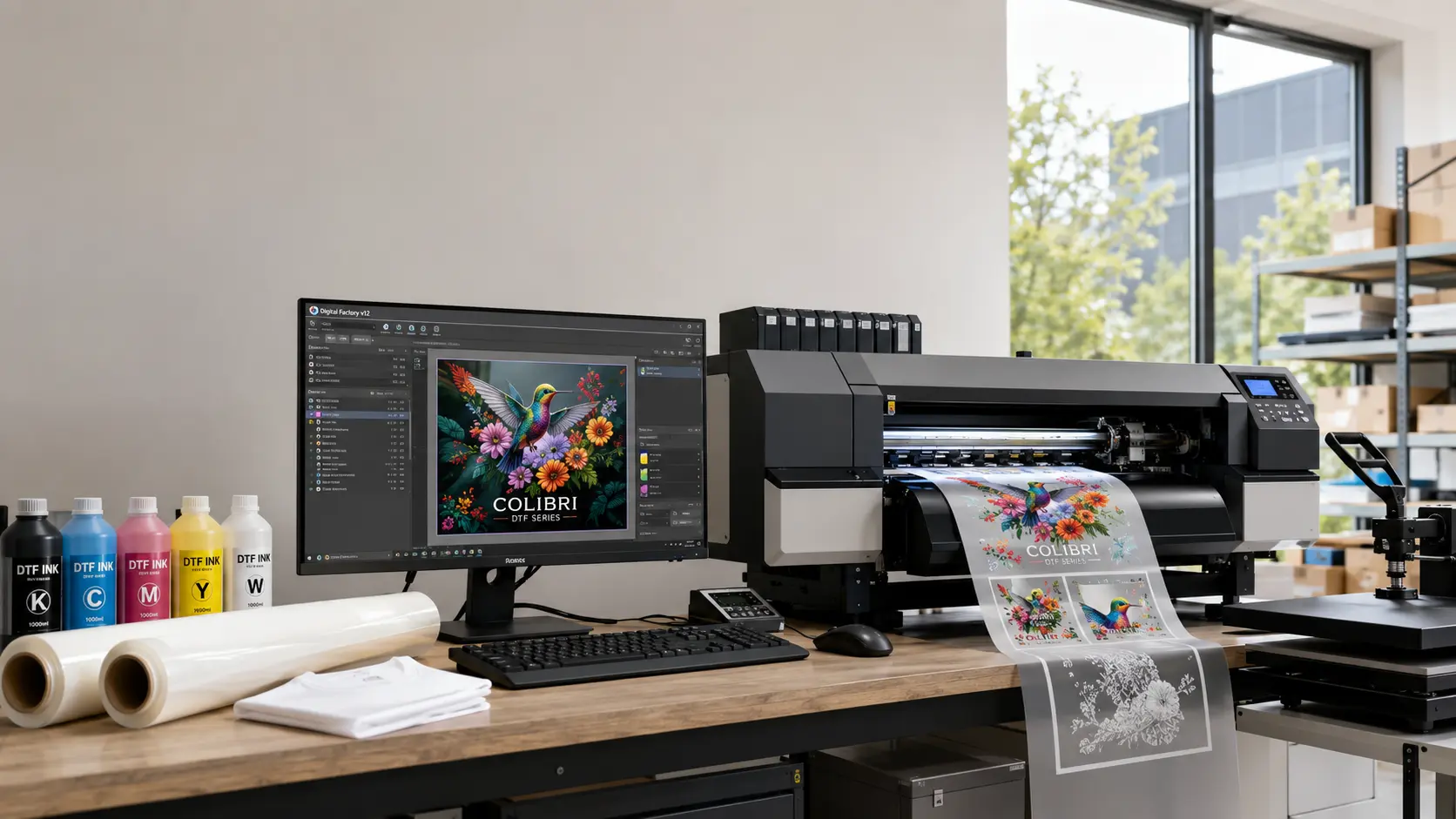
The demand for Cadlink Software Download continues to grow as more DTF printing businesses look for reliable RIP software that delivers professional color management, efficient workflow, and consistent print quality. Whether you’re launching your first DTF setup or upgrading from outdated software, Cadlink Digital Factory V12 Desktop Edition remains one of the industry’s most trusted solutions.
Unlike unofficial downloads that often contain outdated versions, missing drivers, or activation issues, purchasing through an authorized reseller ensures you receive the latest version, genuine license, activation support, and future software updates.
If you’re looking for a safe and fast Cadlink Software Download, this guide explains everything—from purchasing the software to installation and activation—so you can start printing within minutes.
Why Choose Cadlink Digital Factory V12?
Modern DTF production requires more than simply sending artwork to a printer. RIP software controls color accuracy, white ink generation, print order, nesting, ink consumption, and production efficiency.
Cadlink Digital Factory V12 offers:
- Advanced DTF RIP engine
- Automatic white ink generation
- ICC color profile support
- Precise color reproduction
- Fast processing speeds
- Professional production workflow
- Compatible with major DTF printer brands
- Reliable Windows 10 & Windows 11 support
For print shops producing dozens—or even hundreds—of transfers daily, professional RIP software can dramatically improve both productivity and print consistency.
How to Buy & Download Cadlink DTF Software from DTF Gears
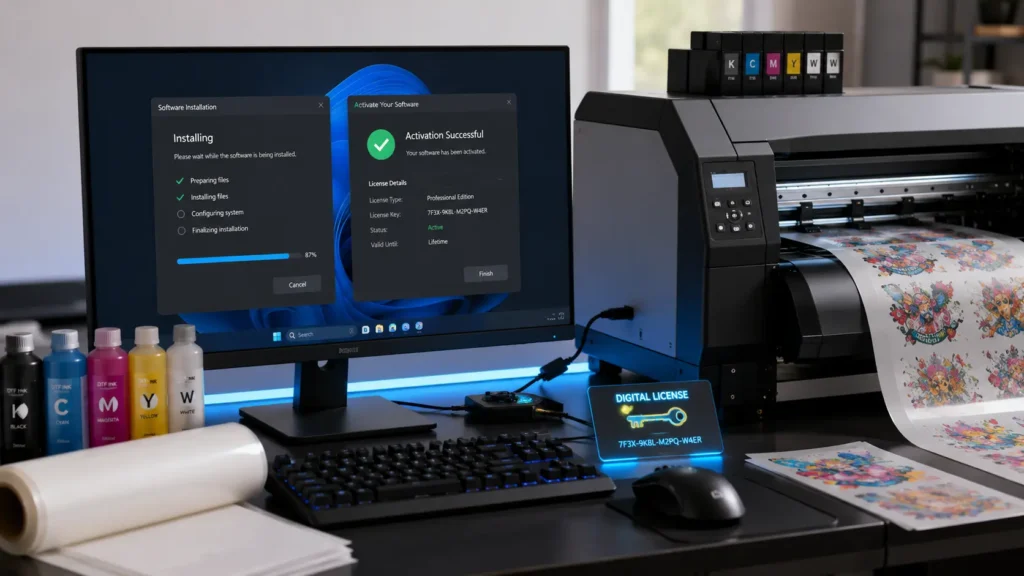
Purchasing Cadlink Software Download from DTF Gears is designed to be simple, secure, and fast.
Instead of waiting for physical media, customers receive a digital download along with activation assistance.
Step 1: Visit the Product Page
Open the Cadlink Digital Factory V12 Desktop Edition product page.
There you’ll find:
- Product specifications
- Supported printers
- Licensing information
- System requirements
- Purchase details
Step 2: Complete Your Purchase
Purchase the software securely.
Price: $374.99
Once payment is confirmed, your order begins processing immediately.
Step 3: Receive Instant Download
You’ll receive:
- Official software download link
- Digital installer
- License details
- Activation instructions
No DVDs.
No waiting for shipping.
No outdated installers.
Step 4: Same-Day Activation Support
If assistance is needed, DTF Gears provides activation support to help complete setup quickly.
Most users can begin printing the same day.
What Comes with Your Purchase?
When buying through DTF Gears, your package typically includes:
- Cadlink Digital Factory V12 Desktop Edition
- Official software installer
- Licensed activation code
- Installation instructions
- Setup assistance
- Activation support
This eliminates the uncertainty that often comes with unofficial software downloads.
Installing Cadlink Digital Factory V12 on Windows 10 or 11
Installation takes approximately 15–20 minutes for most users.
Before beginning, make sure your PC meets the recommended requirements.
Minimum System Requirements
Operating System
- Windows 10
- Windows 11
Processor
- Intel Core i5 or better
Memory
- 8 GB RAM minimum
- 16 GB recommended
Storage
- At least 20 GB free disk space
USB Port
Required if your printer uses USB communication.
Installation Steps
Download the Installer
Download the installer using the official link received after purchase.
Extract Installation Files
If compressed, extract the ZIP folder before running setup.
Run as Administrator
Right-click the installer.
Choose:
Run as Administrator
This prevents permission issues during installation.
Accept License Agreement
Review and accept the software license.
Select Installation Location
Most users should keep the default installation path.
Install Required Components
The installer may automatically install:
- Printer drivers
- Microsoft Visual C++
- Runtime components
Allow these to finish.
Restart Your Computer
After installation completes, restart Windows before launching the software.
Activation Code Setup: Get Printing in Under 30 Minutes
Activation only takes a few minutes.
Follow these steps.
Launch Digital Factory V12
Open the software after installation.
Enter Your License Information
You’ll be prompted to enter:
- License key
- Registration details
- Activation code
Use the credentials provided after purchase.
Connect to the Internet
The software validates your license online.
This usually takes less than one minute.
Complete Activation
Once verified, the software becomes fully licensed.
No additional downloads are required.
Configure Your Printer
Next:
- Select your printer model
- Install the correct driver
- Load ICC profiles
- Configure media settings
You’re now ready for production.
How Long Does the Entire Setup Take?
Most customers complete the full process in under 30 minutes.
Approximate timeline:
| Task | Time |
|---|---|
| Purchase | 2 minutes |
| Download | 3–5 minutes |
| Installation | 15 minutes |
| Activation | 5 minutes |
| Printer Setup | 5–10 minutes |
Why Buy from DTF Gears Instead of Searching for Free Downloads?
Searching for unofficial Cadlink Software Download files may seem like a way to save money, but it often leads to installation failures, malware, outdated versions, missing activation files, or unsupported software.
Buying through an authorized source provides several advantages:
- Genuine licensed software
- Safe download
- Same-day activation
- Technical setup assistance
- Official installer
- Latest software version
- Better compatibility with modern DTF printers
For businesses relying on daily production, using licensed software reduces downtime and helps maintain consistent print quality.
Common Installation Problems (And How to Fix Them)
Installer Won’t Open
Run the installer as Administrator and temporarily disable antivirus software if it is blocking the setup.
Printer Isn’t Detected
Verify the correct printer driver is installed and reconnect the printer using a different USB port if necessary.
Activation Error
Double-check that the activation code matches the purchase information and ensure your computer has an active internet connection during activation.
ICC Profiles Missing
Import the correct ICC profile supplied for your printer and media combination before printing.
Tips for Faster Setup
To get started quickly:
- Download using a stable internet connection.
- Close unnecessary applications during installation.
- Keep Windows fully updated.
- Install printer drivers before connecting the printer.
- Save your activation details in a secure location.
- Restart your computer after installation.
Following these best practices helps ensure a smooth setup process and reduces the likelihood of activation or driver issues.
Frequently Asked Questions
Is Cadlink Digital Factory V12 compatible with Windows 11?
Yes. The Desktop Edition supports both Windows 10 and Windows 11.
How long does activation take?
Most activations are completed within a few minutes after entering the license information and connecting to the internet.
Do I receive the software immediately?
Yes. After purchase, you’ll receive a download link and activation details so you can begin installation without waiting for physical delivery.
Can I reinstall the software later?
Yes, provided you follow the licensing terms and retain your activation information.
Is technical support available?
Yes. DTF Gears provides setup and activation assistance to help users complete installation successfully.
Buy Cadlink Digital Factory V12 Today
If you’re looking for a secure and reliable Cadlink Software Download, purchasing Cadlink Digital Factory V12 Desktop Edition from DTF Gears is the fastest way to get started. You’ll receive an official installer, a licensed activation code, and support to complete installation on Windows 10 or 11.
Whether you’re setting up a new DTF printer or upgrading your existing workflow, genuine software helps ensure stable performance, accurate color output, and a more efficient production process.