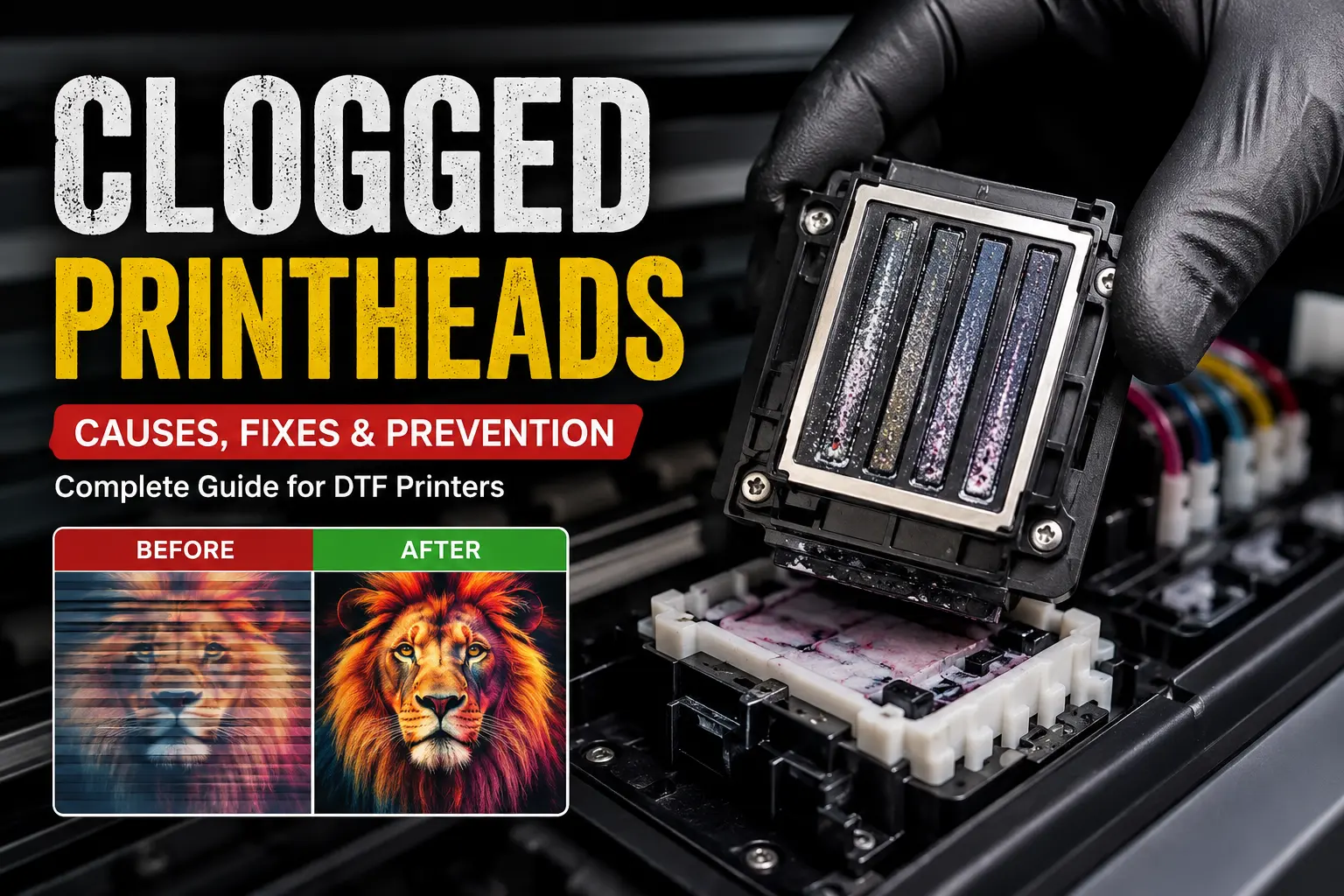


If your DTF prints are showing horizontal lines, vertical streaks, faded sections, or uneven colors, you’re most likely dealing with print banding and streaking. These are among the most common DTF printing problems and can ruin otherwise perfect transfer films.
The good news is that most banding issues are easy to diagnose and fix once you know the root cause.
In this guide, we’ll explain:
- What print banding and streaking are
- Why they happen
- Step-by-step troubleshooting
- How to prevent them permanently
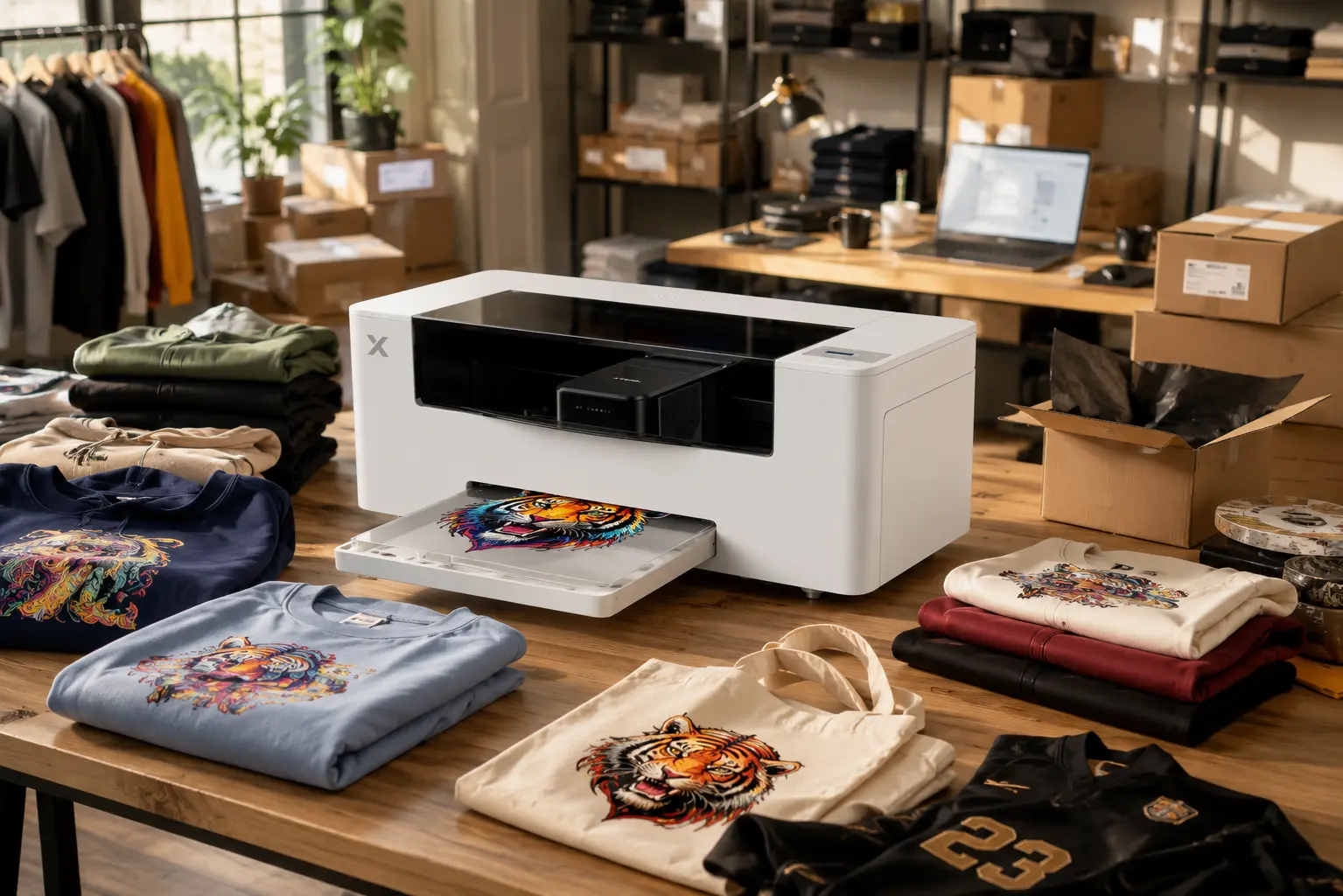
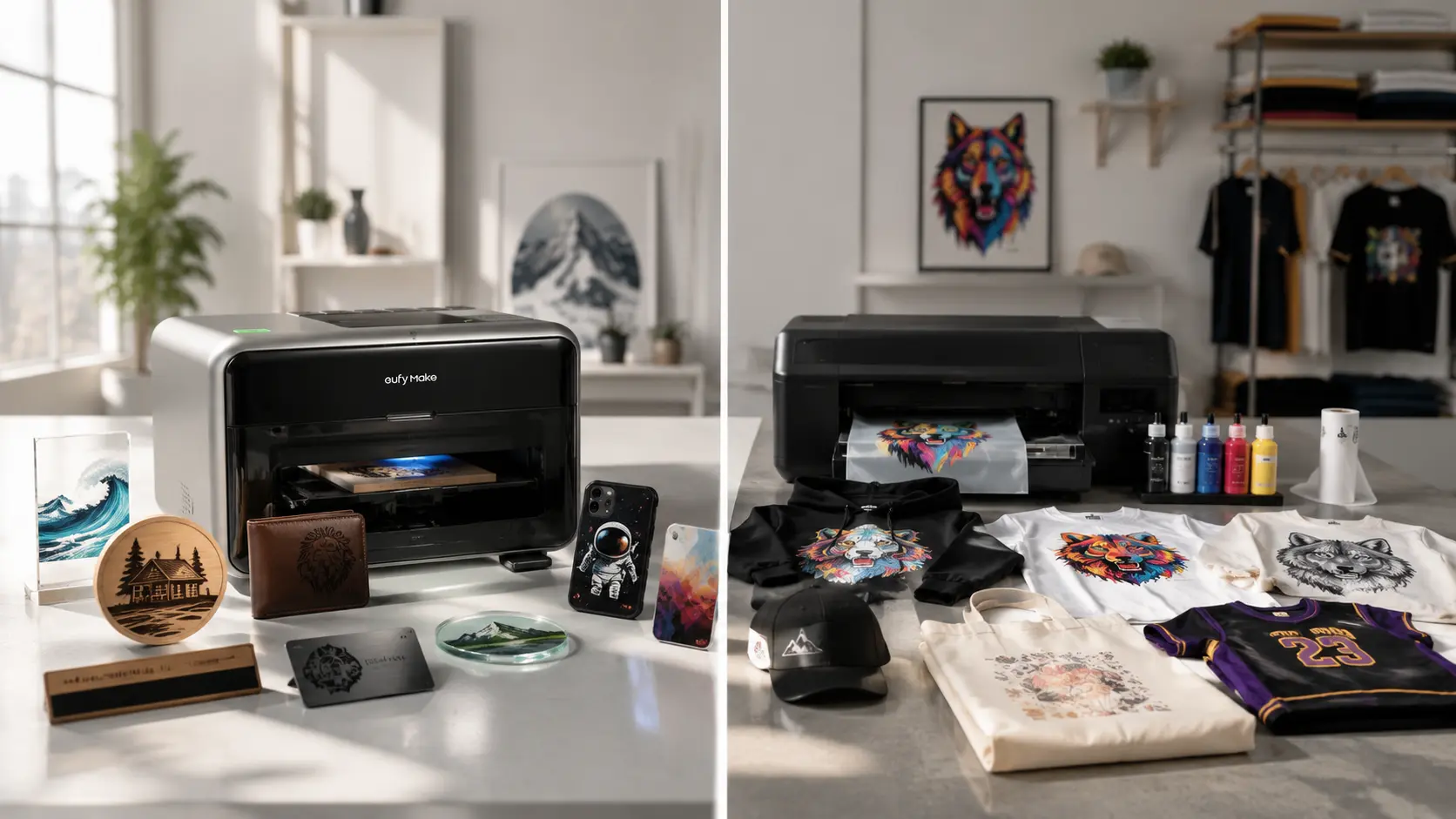
- Why investing in a premium DTF printer like Procolored or xTool can eliminate many of these problems
What Is Print Banding?

Print banding refers to visible horizontal or vertical lines appearing across a printed design.
Instead of smooth gradients and solid colors, your print may look striped or uneven.
Common symptoms include:
- Horizontal white lines
- Missing ink in certain areas
- Uneven gradients
- Color inconsistency
- Visible print passes
- Streaks running through the artwork
These defects become especially noticeable on:
- Dark backgrounds
- Large solid colors
- Photographs
- High-resolution graphics
Why Does Print Banding Happen?
There isn’t just one reason.
Usually, it’s a combination of printer maintenance, software settings, and ink delivery issues.
1. Clogged Printhead Nozzles
The most common cause is partially blocked nozzles.
When one or more nozzles stop spraying ink correctly, the printer leaves gaps during each print pass.
Symptoms:
- White horizontal lines
- Missing colors
- Broken gradients
Solution:
- Run a nozzle check
- Perform head cleaning
- Clean the capping station
- Replace damaged dampers if necessary
2. Incorrect Print Head Height
If the printhead sits too high above the film:
- Ink droplets spread before landing
- Prints become fuzzy
- Banding increases
If it’s too low:
- The head may strike the film
- Ink smears
- Streaking occurs
Always maintain the manufacturer-recommended head height.
3. Low White Ink Circulation
DTF white ink contains heavy pigments that settle quickly.
Poor circulation can cause:
- Uneven white underbase
- Missing white ink
- Random streaks
- Patchy prints
Prevent this by:
- Shaking white ink daily
- Using automatic white ink circulation
- Printing regularly
4. Incorrect RIP Software Settings
Your RIP software controls:
- Print resolution
- Pass count
- Ink density
- White underbase
- Print direction
Improper settings often create visible banding.
For CADlink users:
- Select the correct ICC profile
- Enable bidirectional calibration
- Use the proper pass settings
- Check white underbase generation
5. Dirty Encoder Strip
The encoder strip tells the printer where the printhead is located.
Dust or dried ink can cause:
- Misaligned passes
- Jagged lines
- Horizontal streaking
- Double printing
Clean it carefully using a lint-free cloth and approved cleaning solution.
6. Low Quality DTF Film
Not every transfer film accepts ink evenly.
Poor-quality film can cause:
- Ink pooling
- Uneven absorption
- Streak marks
- Patchy colors
Always choose premium PET film from a trusted supplier.
7. Incorrect Environmental Conditions
DTF printing performs best in a controlled environment.
Problems increase when:
- Humidity is too low
- Temperature fluctuates
- Dust enters the printer
Recommended conditions:
- Temperature: 20–28°C
- Humidity: 45–65%
Step-by-Step Troubleshooting Checklist
Before replacing expensive parts, follow this checklist.
Step 1
Run a nozzle check.
Missing lines?
Clean the printhead.
Step 2
Inspect the encoder strip.
Clean it if dirty.
Step 3
Verify white ink circulation.
Ensure the pump is working properly.
Step 4
Check head height.
Adjust according to the printer manual.
Step 5
Review RIP settings.
Incorrect print resolution frequently causes visible banding.
Step 6
Inspect dampers and ink lines.
Replace any components showing air bubbles or restricted ink flow.
Step 7
Print a test image.
If banding disappears, resume production.
How Premium DTF Printers Reduce Banding Problems

While maintenance is essential for every printer, premium DTF printers include engineering improvements that significantly reduce print defects.
Procolored DTF Printers
Procolored printers are designed with features that help maintain consistent print quality.
Advantages include:
- Stable ink delivery system
- Reliable white ink circulation
- Precision printhead alignment
- Smooth carriage movement
- Optimized firmware for consistent output
These features help minimize banding, especially during long production runs.
xTool DTF Printers
xTool has quickly become one of the most innovative names in desktop manufacturing, and its DTF printers focus heavily on automation and consistency.
Benefits include:
- Intelligent calibration
- Accurate printhead positioning
- Consistent ink distribution
- User-friendly workflow
- High-quality print engine
For businesses producing hundreds of transfers daily, these automated features help reduce downtime and improve print consistency.
Prevent Print Banding Before It Starts
Following a simple maintenance routine can prevent most print quality issues.
Daily:
- Perform nozzle checks
- Print a small color test
- Shake white ink if required
- Clean around the printhead
Weekly:
- Clean encoder strip
- Inspect dampers
- Check capping station
- Clean wiper blade
Monthly:
- Deep maintenance
- Replace worn consumables
- Check belt tension
- Inspect ink lines
Preventive maintenance is always cheaper than replacing a damaged printhead.
When Should You Upgrade Your Printer?
If you constantly experience:
- Banding
- Streaking
- Frequent nozzle clogging
- Poor white ink coverage
- Inconsistent colors
despite regular maintenance, your printer may no longer be suitable for your production volume.
Modern systems from Procolored and xTool offer improved hardware, automated maintenance features, and more stable ink management, making them excellent options for businesses that need dependable, professional-quality DTF printing.
Final Thoughts
Print banding and streaking are frustrating, but they are usually symptoms of an underlying maintenance, calibration, or hardware issue—not a permanent printer failure.
Regular cleaning, correct RIP settings, proper white ink circulation, and quality consumables can solve most problems. If you’re ready to reduce maintenance and achieve more consistent output, upgrading to a Procolored or xTool DTF printer can be a worthwhile investment thanks to their advanced ink delivery systems, automated maintenance features, and reliable print quality.
At DTF Gears, we offer genuine Procolored and xTool DTF printers, premium consumables, and expert support to help you keep production running smoothly. Whether you’re troubleshooting print quality or looking to upgrade your equipment, our team is here to help.
FAQs
Why does my DTF printer print horizontal lines?
The most common causes are clogged nozzles, incorrect printhead height, dirty encoder strips, or improper RIP settings.
Can a clogged printhead cause streaking?
Yes. Even partially blocked nozzles can create visible streaks and missing ink lines.
Does white ink cause print banding?
It can. Poor white ink circulation or pigment settling often leads to uneven underbase coverage and streaking.
Which DTF printers are known for consistent print quality?
Premium models from Procolored and xTool are designed with advanced ink management and calibration features that help reduce common issues like banding and streaking.
How often should I clean my DTF printer?
Light maintenance should be performed daily, while deeper cleaning and inspection should be done weekly or monthly depending on your print volume.