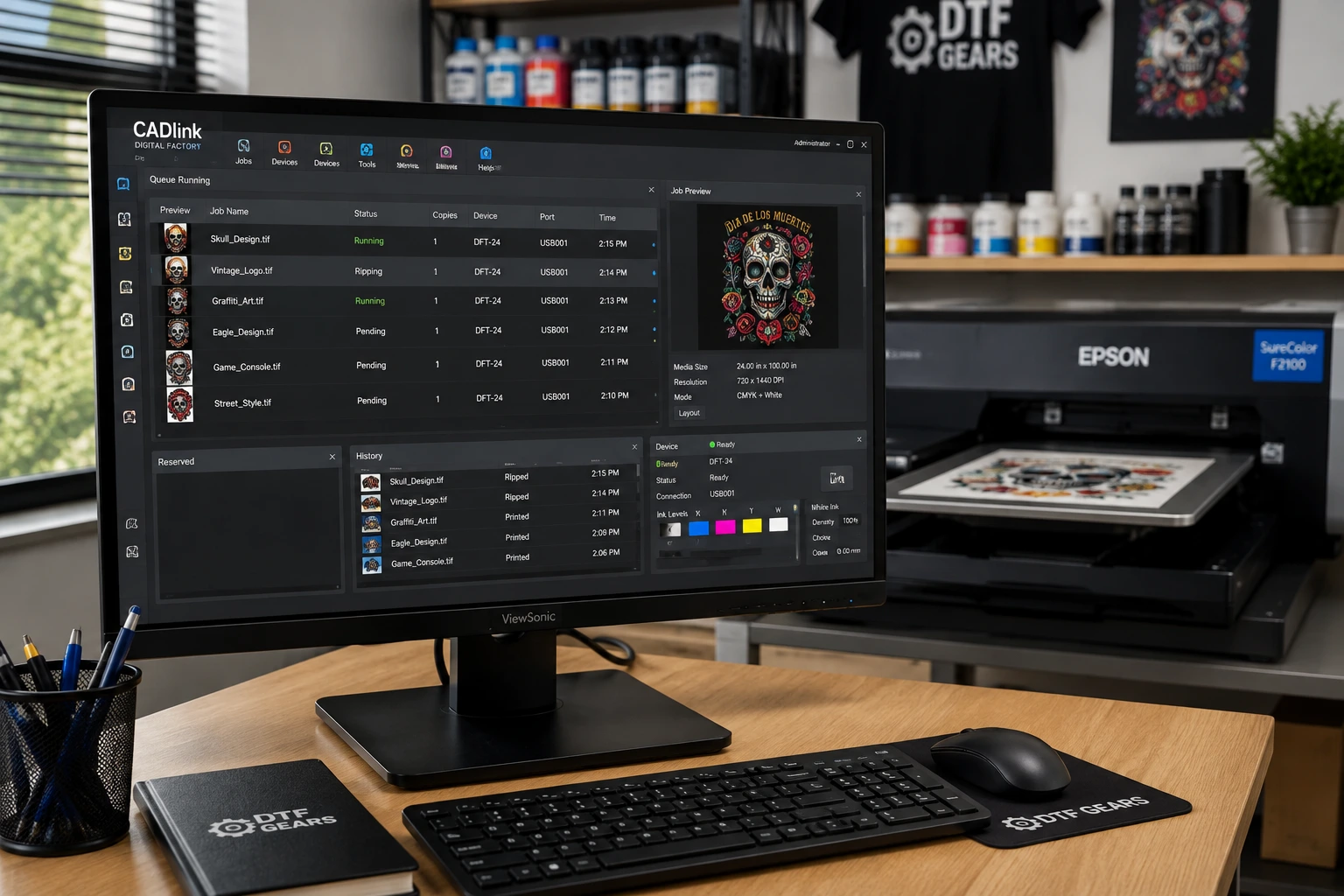

If you are considering CADlink Digital Factory for your DTF print shop, the software itself is only part of the buying decision. Before purchasing, many print-shop owners want to know something more basic:
Can I use my CADlink Digital Factory license on more than one computer?
And if you replace your production computer, add another workstation, or upgrade your printer, what happens to the license?
These questions matter because a RIP license is not simply a file you install and forget about. CADlink Digital Factory uses activation-based licensing, and understanding how activation, deactivation, additional printer support, and license transfers work can help you avoid unnecessary purchases or activation problems.
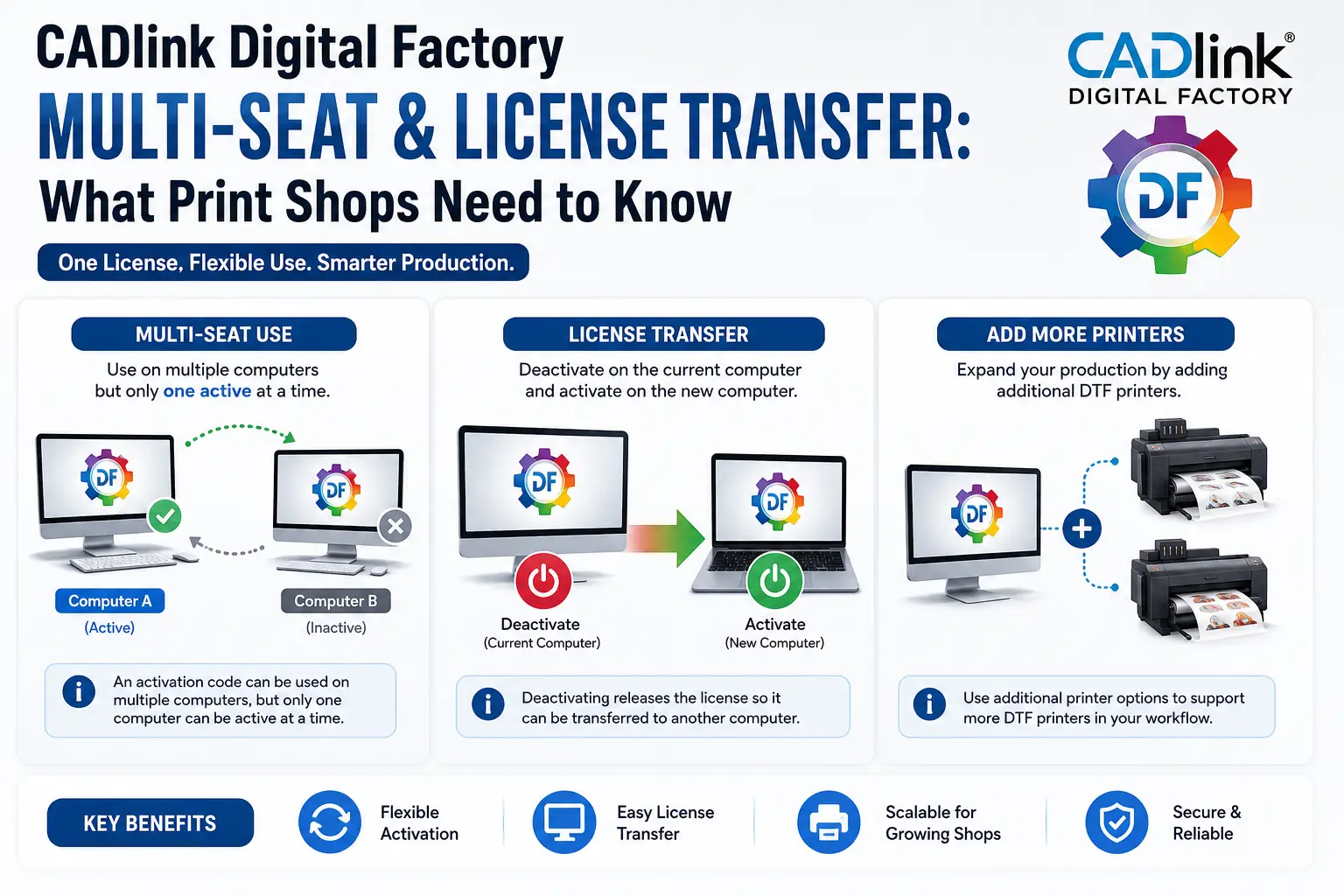
The good news is that the current CADlink/Fiery activation system provides flexibility for businesses that need to move their software between computers. According to Fiery’s activation-code FAQ, an activation code can be used on multiple computers, but only one computer can be active at a time. To move the license, you deactivate it on the current computer and then activate it on the new one.
For DTF businesses, that distinction between multiple computers and multiple simultaneous users is extremely important.
This guide explains what you need to know about a CADlink Digital Factory license, computer transfers, multi-computer setups, printer expansion, and choosing the right licensing option for your print shop.
What Is a CADlink Digital Factory License?
CADlink Digital Factory is professional RIP and production workflow software designed for digital printing applications, including Direct-to-Film (DTF).
The software handles much more than simply sending an image to a printer.
Depending on the edition and configuration, Digital Factory can provide tools for:
- Color management
- White-ink control
- Artwork processing
- Job queues
- Gang sheet production
- Printer management
- Production automation
- Layout optimization
- Print previews
- ICC-based color workflows
Fiery describes Digital Factory DTF as a complete RIP and production workflow designed to take a DTF job from artwork preparation through final output.
Because the software is licensed, your ability to install, activate, deactivate, and move it between computers is controlled through its licensing system.
That is why understanding your CADlink Digital Factory license is just as important as understanding the software’s features.
Can CADlink Digital Factory Be Used on Multiple Computers?
Yes, but there is an important distinction.
Fiery’s current activation-code FAQ states that an activation code can be used on multiple computers, but only one computer can be active at a time. When you want to use the software on another computer, you deactivate the current installation and activate the license on the new machine.
This means a single license should not be interpreted as a license for two employees to run CADlink simultaneously on two separate production computers.
Instead, think of it as:
One license → multiple computers over time → one active computer at a time.
Example
Imagine you have CADlink Digital Factory installed on:
- Production PC A
- Backup PC B
If PC A is the active machine, you cannot simply launch the same activation on PC B and operate both simultaneously under that same activation.
If you need PC B to become the production computer, you would first deactivate the license on PC A and then activate it on PC B.
This is particularly useful when replacing an old computer or moving your RIP workflow to a newer workstation.
CADlink Digital Factory License Transfer: How Does It Work?
A CADlink Digital Factory license transfer is essentially the process of moving your active software license from one computer to another.
The basic workflow is:
Current computer → Deactivate → New computer → Activate
Fiery’s licensing documentation explains that deactivation makes the activation available again so the license can be transferred to another computer.
For many print shops, this is useful when:
- Replacing an old production PC
- Upgrading computer hardware
- Reinstalling Windows
- Moving to a dedicated RIP workstation
- Changing the computer connected to a DTF printer
- Recovering from a failed workstation
- Setting up a backup production computer
The important thing is to treat the license as an asset that needs to be properly deactivated and reactivated rather than simply copying software files from one PC to another.
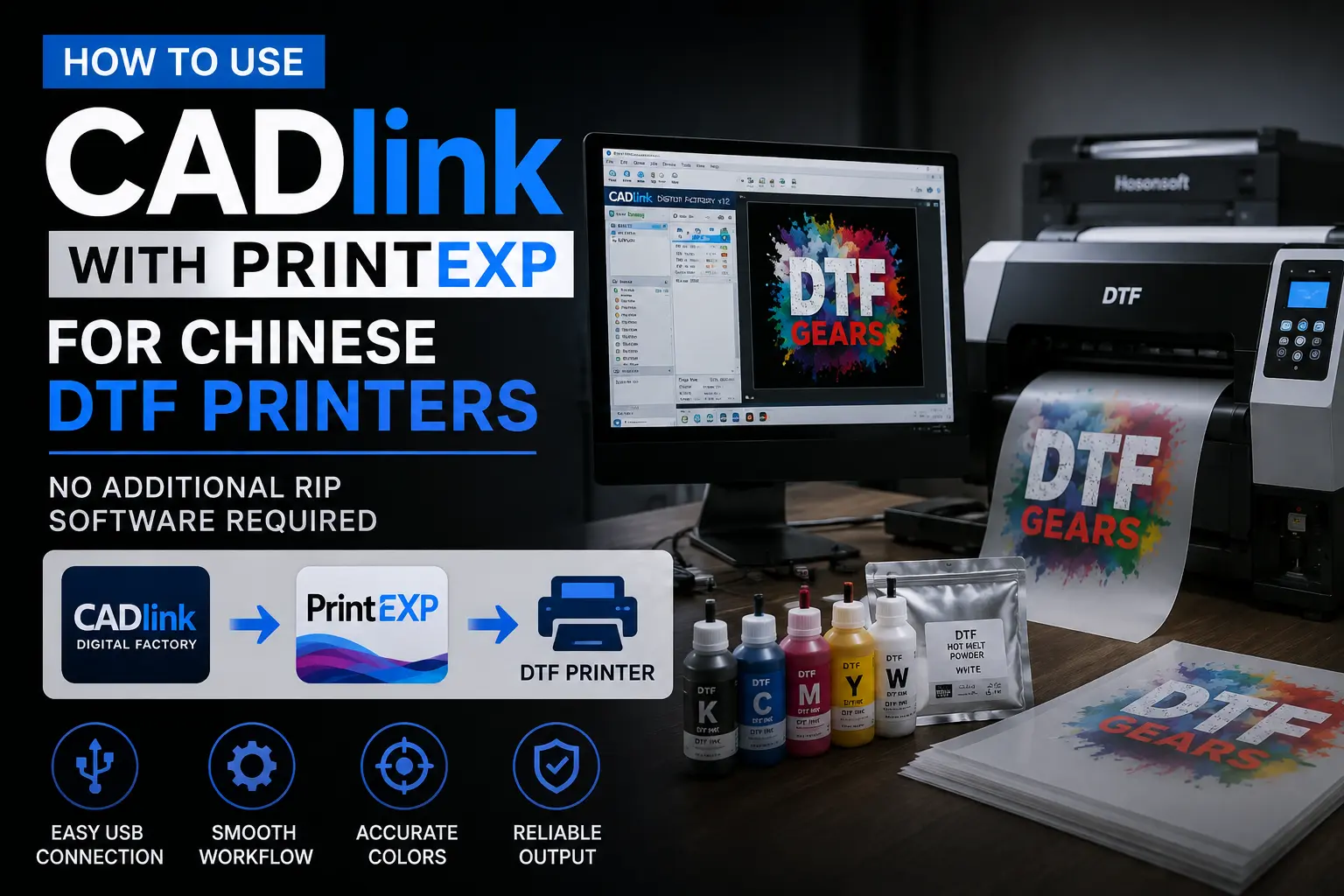
CADlink with Chinese DTF printer
How to Transfer CADlink Digital Factory to a New Computer
If your existing computer is still working, the cleanest approach is to transfer the license before retiring the old system.
Step 1: Record Your License Information
Before making changes, keep your:
- CADlink activation code
- Purchase information
- Software version
- Edition
- Printer configuration information
- ICC profiles
- Important production settings
Your activation code is particularly important. Fiery recommends keeping the activation code somewhere safe because it may be needed when activating or moving the software.
Step 2: Deactivate the Existing Installation
On the old computer, use the software’s deactivation function.
Fiery’s documentation explains that deactivation releases the license so it can be transferred to another computer.
Step 3: Install Digital Factory on the New Computer
Install the appropriate Digital Factory version on the new Windows workstation.
DTF Gears’ current installation guidance recommends having a compatible Windows PC, administrator access, internet connectivity, your license information, the appropriate installer, and the relevant printer configuration information ready before installation.
Step 4: Activate the License
Launch Digital Factory and enter the activation information when prompted.
The activation process validates your licensed software installation.
Step 5: Reconfigure Your DTF Workflow
Moving the license does not mean you should ignore your production configuration.
You may need to configure:
- Printer drivers
- Print queues
- ICC profiles
- White-ink settings
- Media settings
- Gang sheet preferences
- Output settings
- Hot folders
- Production presets
This is one reason why moving to a new computer should be treated as a workflow migration, not simply a software installation.
What If Your Old Computer Has Failed?
This is one of the most common concerns among print-shop owners.
What happens if your old RIP computer suddenly stops working and you cannot open Digital Factory to deactivate the license?
The answer can depend on the version and licensing system involved.
Current Fiery documentation includes license restoration and reactivation procedures, while Digital Factory 12.1 introduced an activation-code self-reset capability specifically to make moving a license to another system easier.
If your computer has failed, do not immediately purchase another full CADlink license.
First, check your existing license information and the current transfer/reset options for your Digital Factory version.
If you purchased through a reseller, contacting that reseller can also help determine the correct next step.
Does CADlink Digital Factory Support Multi-Seat Licensing?
This is where terminology can cause confusion.
A multi-seat setup generally means an organization has multiple computers or users that need to run software.
That does not automatically mean one standard CADlink activation can be used simultaneously across all those computers.
Fiery’s activation-code FAQ specifically says that an activation code can be used on multiple computers but only one can be active at a time.
So if your print shop has two production PCs and you want both machines actively processing jobs at the same time, you should not assume that purchasing one standard CADlink license gives you two simultaneous seats.
Instead, ask:
Do I need another activation/license, or do I need an additional printer option?
Those are different requirements.
Multiple Computers vs. Multiple Printers: They Are Not the Same
This distinction is particularly important for growing DTF businesses.
You might have:
Scenario A: One DTF printer and two computers.
Or:
Scenario B: One computer and two DTF printers.
Or:
Scenario C: Two computers and two DTF printers.
These situations can require different licensing considerations.
For example, moving a license from Computer A to Computer B is a computer activation issue.
Adding another supported DTF printer to an existing Digital Factory environment is a printer licensing/edition issue.
Don’t confuse the two.
What If I Want to Add Another DTF Printer?
This is where Digital Factory’s printer add-on options become relevant.
Fiery currently lists a Digital Factory Direct to Film Production Add-On Printer, which enables support for one additional DTF printer within an existing Digital Factory DTF environment.
Fiery also lists a Digital Factory Direct to Film Desktop Add-On Printer for adding one additional DTF printer to an existing DTF Desktop Edition license.
This can be a much more relevant solution for a growing print shop than simply buying another complete copy of the software.
Example
Suppose your shop starts with:
One computer + one DTF printer
Later, you purchase a second compatible DTF printer.
Instead of immediately assuming you need:
Two complete Digital Factory licenses
you should first check whether an appropriate additional printer option is available for your Digital Factory edition.
That distinction can potentially save a business from buying the wrong licensing product.
Can Two DTF Printers Run From One CADlink Computer?
Potentially, depending on the Digital Factory edition, printer support, and applicable add-on licensing.
Fiery specifically offers additional DTF printer options for both Production and Desktop environments.
The important point is that printer count and computer count are separate licensing questions.
Before purchasing, determine:
- How many computers need Digital Factory?
- How many printers need to be supported?
- Will those printers run simultaneously?
- Which Digital Factory edition do you have?
- Are your printers supported?
- Do you need an additional printer option?
This is a much better approach than simply searching for the cheapest CADlink license.
CADlink Digital Factory License Transfer vs. Buying Another License
Suppose your existing computer is becoming slow.
You have two options:
Option 1: Transfer your existing license
If you’re replacing the old computer and only need Digital Factory active on the new workstation, a license transfer may be the logical solution.
Option 2: Purchase an additional license
If you actually need two computers running CADlink simultaneously, an additional license may be more appropriate.
The difference is simple:
Replacing a computer = potentially transfer the license.
Adding another active workstation = investigate an additional license.
This distinction can prevent unnecessary software expenses.
What About CADlink V12 and License Transfers?
CADlink Digital Factory V12 uses activation-code licensing rather than requiring a physical USB dongle.
Fiery explains that modern CADlink activation codes eliminate the need for external security hardware and allow users to deactivate a machine and reactivate the software on another system.
Digital Factory 12.1 goes further by adding activation-code self-reset functionality, allowing users to move an activation code to another system without necessarily contacting technical support for the reset.
This makes the current licensing model much more practical for print shops that regularly upgrade hardware.
Does CADlink Require Internet Access?
Activation-based licensing requires internet connectivity for certain licensing operations.
Fiery’s activation FAQ states that an internet connection is required for activation and switching computers, and that the software also needs periodic online validation.
This is important when building a production workstation.
A dedicated RIP computer should ideally have:
- Reliable internet access
- Stable Windows installation
- Appropriate hardware
- Administrator access
- Correct printer drivers
- Proper backups
Don’t wait until activation fails to discover that the production computer has no reliable internet connection.
What Happens When You Reinstall Windows?
A Windows reinstall can affect the software installation and local licensing records.
Fiery’s documentation includes procedures for restoring previously activated licenses when licensing records are unavailable after system software reinstallation.
Before reinstalling Windows on a production computer, document your:
- Activation code
- Digital Factory version
- Printer configuration
- ICC profiles
- Production presets
- Hot folders
- Gang sheet settings
- Important job files
If the workstation is responsible for your entire DTF production workflow, preparation is much safer than trying to reconstruct everything after the reinstall.
CADlink License and DTF Printer Compatibility
A license is only useful if your printer is supported.
This is one of the most important things to check before purchasing CADlink Digital Factory.
DTF Gears currently offers separate Digital Factory V12 Desktop and Large Format/Production products, with the Desktop edition intended for smaller-format workflows and the Production edition designed for larger-format production environments.
Fiery also maintains current supported-printer information for Digital Factory.
Therefore, don’t choose your CADlink license solely based on:
“How much does CADlink cost?”
Instead ask:
“Which CADlink edition supports my printer and production workflow?”
That is the more important buying question.
CADlink V12 Desktop vs. Production Licensing
For a smaller DTF business, the Desktop Edition may be the appropriate starting point.
DTF Gears currently describes its V12 DTF Desktop Edition as supporting A2-sized sheets or smaller and roll media up to approximately 17 inches wide.
For larger production environments, DTF Gears offers the V12 Large Format/Production Edition, designed for wider-format DTF workflows. Its current product information describes support for wide-format DTF printers and production-oriented features.
The right choice depends on your:
- Printer width
- Production volume
- Number of printers
- Workflow requirements
- Expansion plans
- Required automation
What If I Upgrade From CADlink V11 to V12?
If you already own CADlink V11, don’t automatically purchase a completely new V12 license.
An upgrade path may be available depending on your current edition.
DTF Gears currently offers V11-to-V12 upgrade products for eligible Desktop and Large Format users. For its Large Format upgrade, the current process involves providing the existing V11 license code so the V12 upgrade can be activated against that license.
DTF Gears also lists a V12 Desktop-to-Large Format upgrade for businesses that have outgrown the Desktop workflow.
This makes upgrades another important part of the CADlink licensing decision.
What Should You Check Before Buying a CADlink License?
Before clicking the purchase button, run through this checklist.
1. Which Digital Factory edition do you need?
Desktop or Production?
2. What printer are you using?
Confirm compatibility.
3. How many printers do you have?
One printer and multiple printers may require different licensing considerations.
4. How many computers need to run the software?
One active workstation is different from multiple simultaneous workstations.
5. Are you replacing an existing computer?
If yes, investigate license transfer before purchasing a new license.
6. Do you already own CADlink?
If yes, check whether an upgrade is available.
7. Do you need additional printer support?
Check the relevant add-on options.
8. Do you have your activation information?
Keep your activation code securely stored.
9. Is your production computer connected to the internet?
Activation and computer switching require connectivity under the current activation-code system.
10. Is your printer supported?
Always confirm before purchase.
Common CADlink Licensing Mistakes Print Shops Make
Mistake 1: Assuming One License Means Two Simultaneous Computers
A standard activation code can be used across computers, but Fiery states that only one can be active at a time.
Mistake 2: Buying a New License When Replacing a PC
If you’re simply replacing your old workstation, investigate the transfer process first.
Mistake 3: Confusing Printer Add-Ons With Computer Licenses
Adding another printer and adding another active workstation are different requirements.
Mistake 4: Ignoring Your Existing V11 License
You may have an upgrade path instead of needing to purchase a completely new license.
Mistake 5: Installing CADlink Without Planning the Production Workflow
A successful installation involves more than activation.
Printer configuration, ICC profiles, white-ink settings, queues and production presets can all affect the final workflow.
How DTF Gears Can Help With Your CADlink Setup
Buying RIP software is only one part of getting a DTF production system running.
DTF Gears currently offers CADlink Digital Factory software along with installation guidance, printer setup resources and technical support. Its CADlink software page also highlights activation keys, installation guidance and printer setup checklists.
For businesses purchasing CADlink for the first time, this can be particularly useful because the difficult part isn’t always installing the software.
The real challenge can be configuring it correctly for the printer and production environment.
A properly configured workflow can help you manage:
- Color output
- White ink
- Gang sheets
- Print queues
- Printer communication
- Production settings
- Job preparation
Frequently Asked Questions About CADlink Digital Factory Licensing
Can I install CADlink Digital Factory on two computers?
An activation code can be used on multiple computers, but Fiery states that only one computer can be active at a time. You need to deactivate the current computer before activating another.
Can I transfer my CADlink license to a new computer?
Yes. The current licensing system supports moving an activation between computers by deactivating the existing system and activating the new one. Digital Factory 12.1 also introduced activation-code self-reset functionality to simplify moving to another system.
Can I use one CADlink license on two computers simultaneously?
No. Fiery’s activation-code FAQ states that although an activation code can be used on multiple computers, only one can be active at a time.
Do I need another CADlink license for another printer?
Not necessarily. Digital Factory provides additional printer options for certain configurations. Check whether the applicable DTF Desktop or Production add-on supports your setup.
Do I need internet access to activate CADlink?
Yes. Fiery states that internet access is required for activation and switching computers, as well as periodic license validation.
What happens if my computer crashes?
The appropriate recovery process depends on your version and licensing setup. Current Fiery documentation provides restoration and activation procedures, while Digital Factory 12.1 includes self-reset functionality for moving an activation code to another system.
Can I upgrade CADlink V11 to V12?
Eligible V11 users may have upgrade options. DTF Gears currently offers V11-to-V12 upgrade products for supported editions.
Is CADlink Digital Factory a lifetime license?
DTF Gears currently lists its V12 Desktop and Production products as full-version lifetime licenses. Always verify the specific product and licensing terms before purchase.
The Bottom Line: Understand Your CADlink License Before You Buy
The biggest mistake when purchasing RIP software is thinking only about the price.
For a DTF print shop, you should also understand:
- Which edition you need
- How many printers you need to support
- How many computers need access
- Whether you need simultaneous operation
- How license transfers work
- Whether an additional printer option is available
- Whether your existing V11 license can be upgraded
- Whether your printer is supported
The current CADlink activation system provides flexibility for businesses that need to move their software between computers. An activation can be used on multiple computers, but only one can be active at a time, while Digital Factory 12.1 adds self-reset functionality to make system transfers easier.
For growing DTF businesses, the bigger licensing question is often not simply “Can I use CADlink on another computer?”
It is:
“What licensing setup will support the way my print shop actually operates?”
If you are purchasing CADlink Digital Factory for a new DTF printer, replacing an existing workstation, adding another printer, or upgrading from V11 to V12, confirm your exact edition and licensing requirements before checkout.
Ready to Choose Your CADlink Digital Factory License?
DTF Gears currently offers CADlink Digital Factory V12 DTF Desktop and Large Format/Production editions, along with upgrade options and DTF-focused setup support.
Explore CADlink Digital Factory options at DTF Gears and choose the license that matches your printer and production workflow.