

Sale!


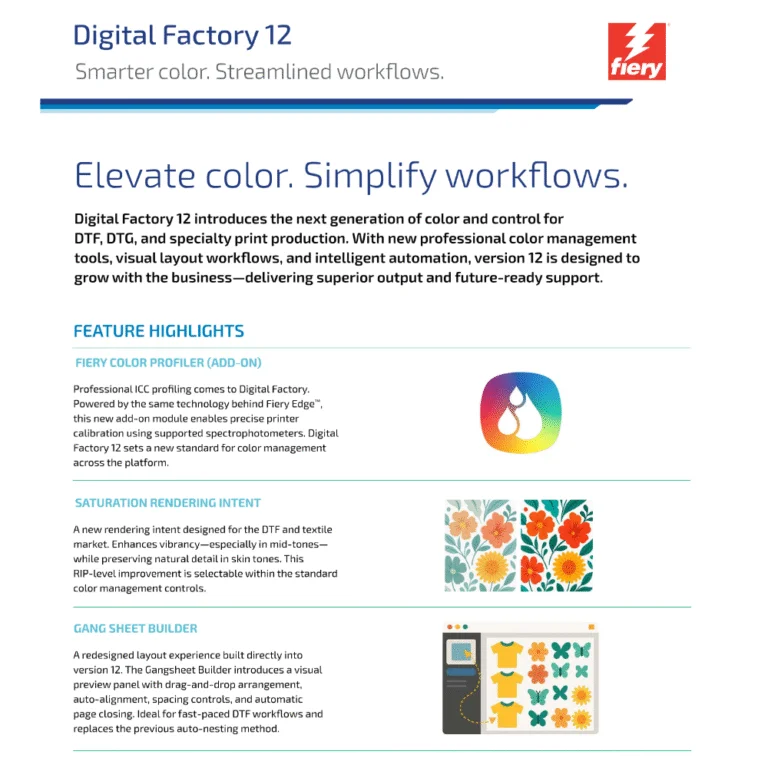
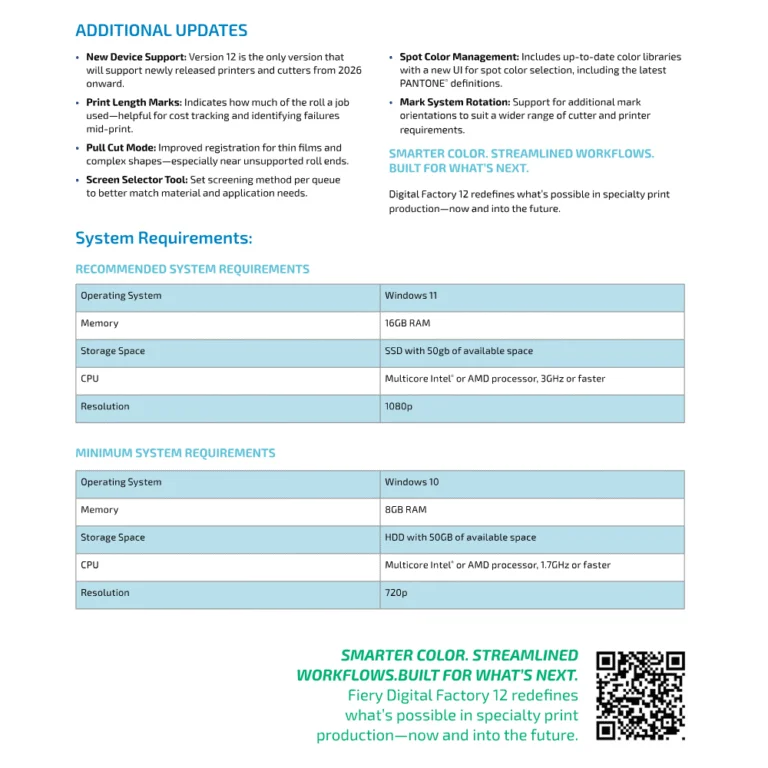
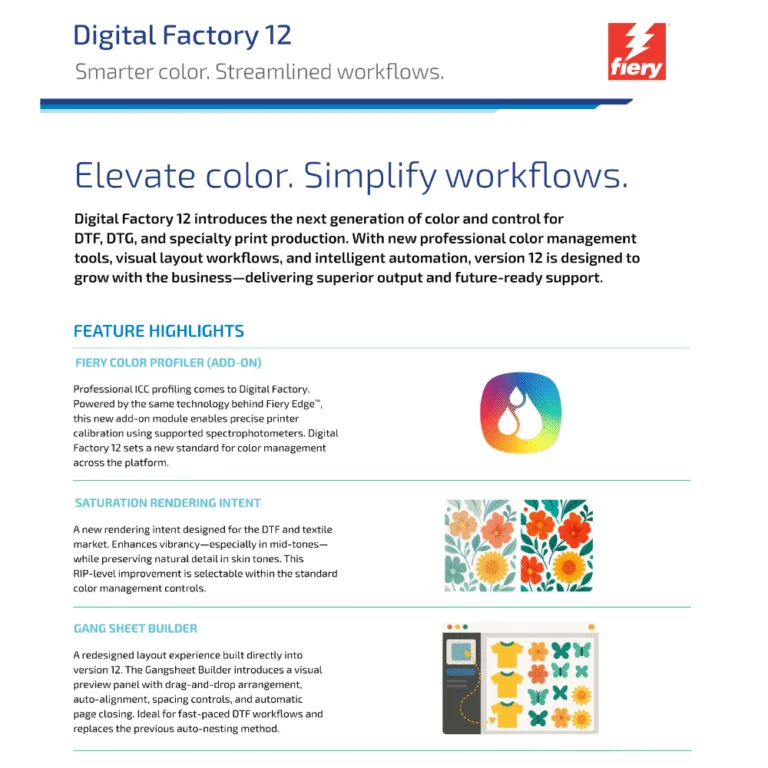
Cadlink Digital Factory V12 Direct to Film RIP Desktop Edition
Original price was: $444.99.$379.00Current price is: $379.00.-
$524.99
CADlink Digital Factory upgrade V12 Desktop to V12 Large Format Upgrade your CADLINK Digital Factory V12 Desktop Edition to V12 Large Format Edition with this dedicated upgrade package. If you currently own the V12 Desktop Edition and wish to transition to the Large Format Version 12, this upgrade option is tailored for you.
CADlink Digital Factory upgrade V12 Desktop to V12 Large Format
Upgrade your CADLINK Digital Factory V12 Desktop Edition to V12 Large Format Edition with this dedicated upgrade package. If you currently own the V12 Desktop Edition and wish to transition to the Large Format Version 12, this upgrade option is tailored for you.

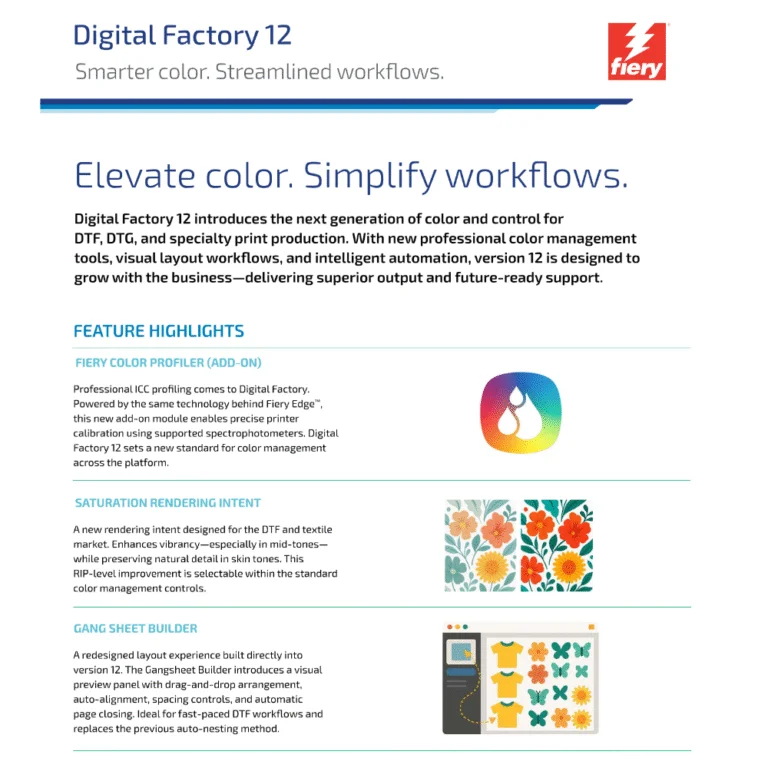
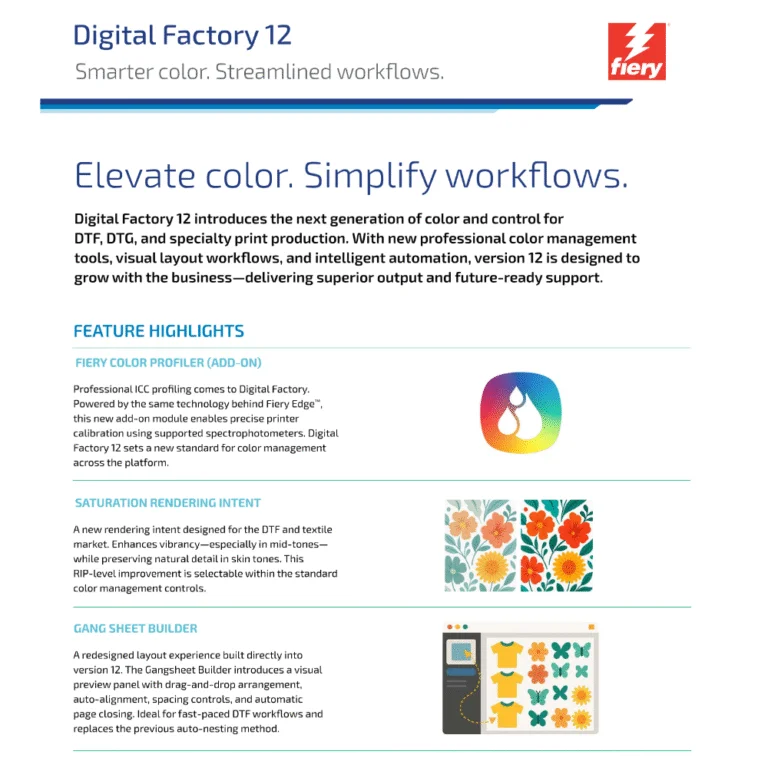
DTF (Direct-to-Film) printing is a modern textile decoration technology where designs are printed onto a special film, coated with hot-melt adhesive powder, cured, and then heat-pressed onto fabric. It works on nearly all fabric types, delivers vivid colors with strong white ink coverage, and is now a mainstream solution for custom apparel and high-volume production.
DTF RIP software is specialized software that prepares artwork so it can be printed correctly on a DTF printer.
What it does:
In simple terms:
DTF RIP software tells the printer how to print your design correctly on film.
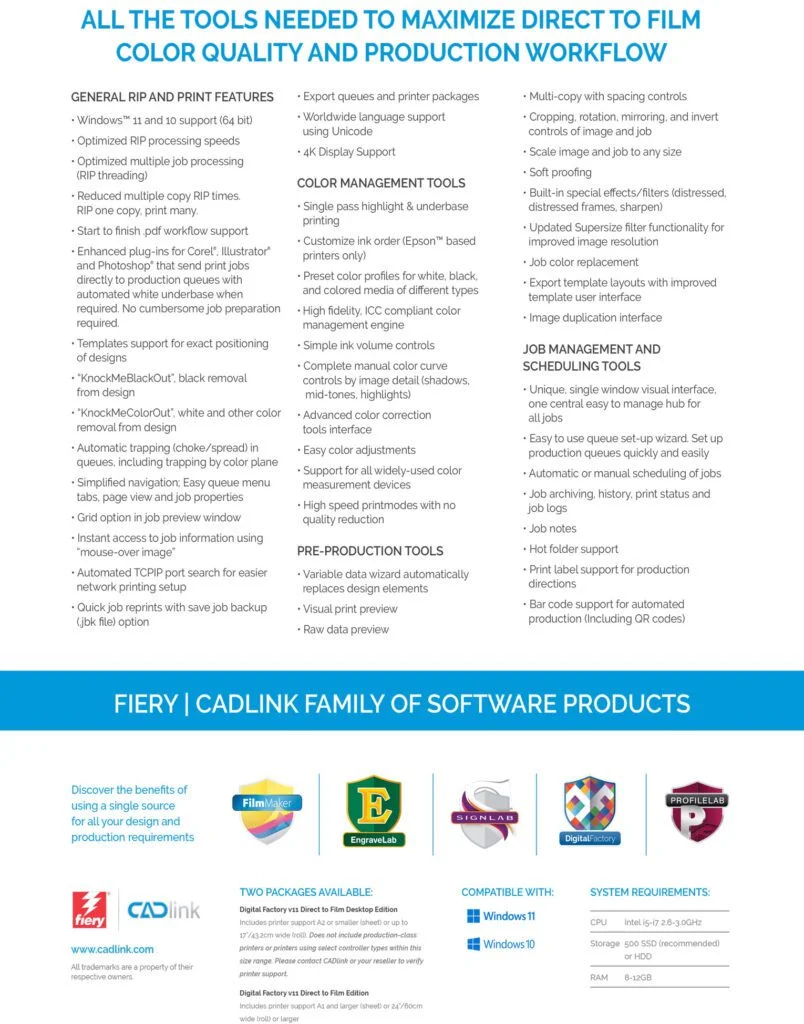
CADlink Digital Factory DTF RIP is often considered one of the best because:
In short, Digital Factory gives better control, consistency, and production reliability than many generic RIPs — especially for DTF workflows.
Cadlink Digital Factory DTF RIP Desktop Edition:
Cadlink Digital Factory DTF RIP Large Format Production Edition:
In short: Desktop = small-scale, single-printer use; Production = large-scale, multi-printer, high-volume workflows.
Yes — you can test Cadlink Digital Factory DTF RIP software before buying. A free 15 day trial version is available from authorized resellers
Trial Availability
Click on Link below to register for Free 15 Day Trial:
https://dtfgears.com/get-free-trial/
If the old computer is not accessible:
Contact CADlink support or DTF Gears and request a license reset.
Please watch the video below for more details:
https://www.youtube.com/shorts/9vfGeakSXV0
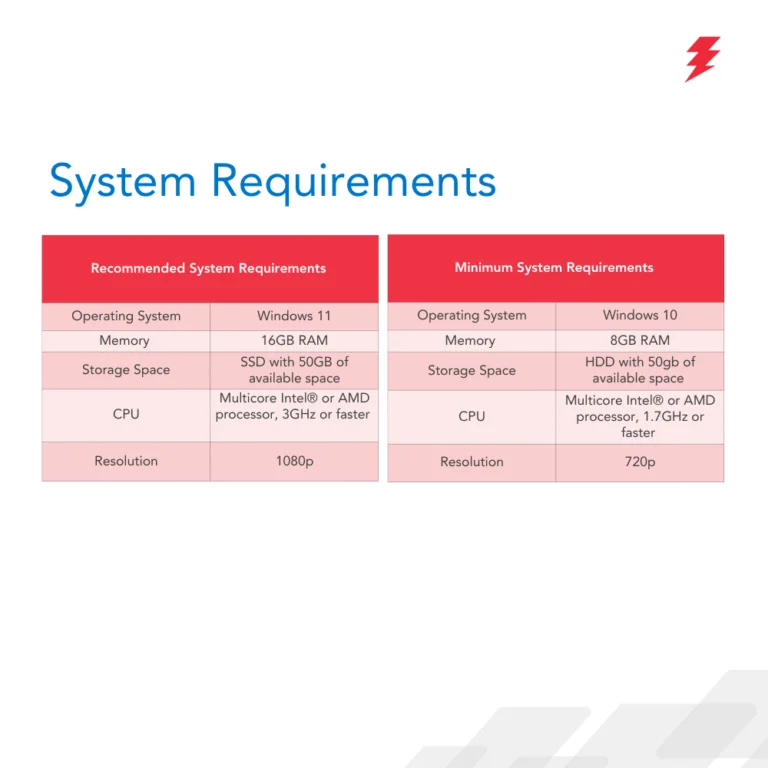
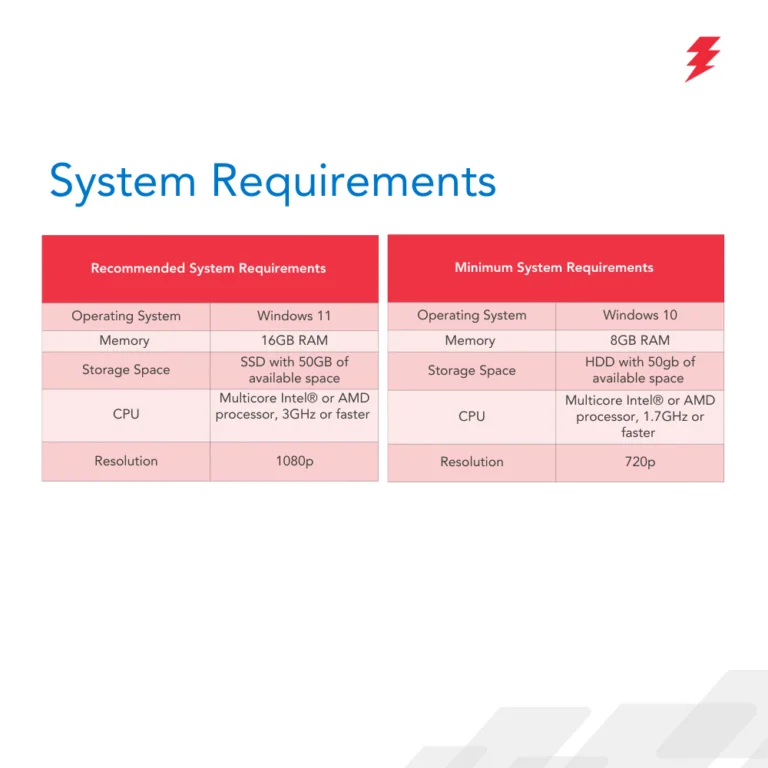
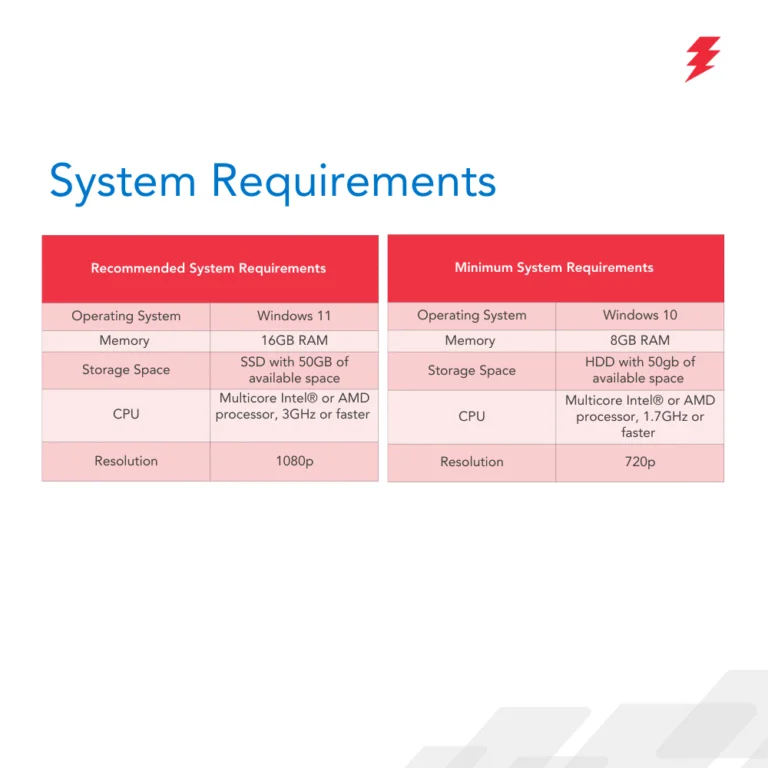
No — CADlink Digital Factory is not natively compatible with macOS. It is designed to run on Windows only (Windows 10/11) and does not have a Mac version.
If you have a Mac
You can only run it by creating a Windows environment using virtualization software (e.g., Parallels Desktop, VMware Fusion), but this is not officially supported on newer Macs with Apple Silicon (M-series) and may not work reliably.
Best approach: use a Windows PC for CADlink to avoid compatibility issues.
Yes — Cadlink Digital Factory does work with many Chinese DTF printers. It supports a wide range of OEM and Chinese brands (e.g., Audley, Sublistar, TitanJet, PIT, AGA-DTF, Oric, etc.), though setup may require proper TCP/IP configuration and ensuring the RIP software runs on the same computer as the printer’s control software
For Details check the article Below:
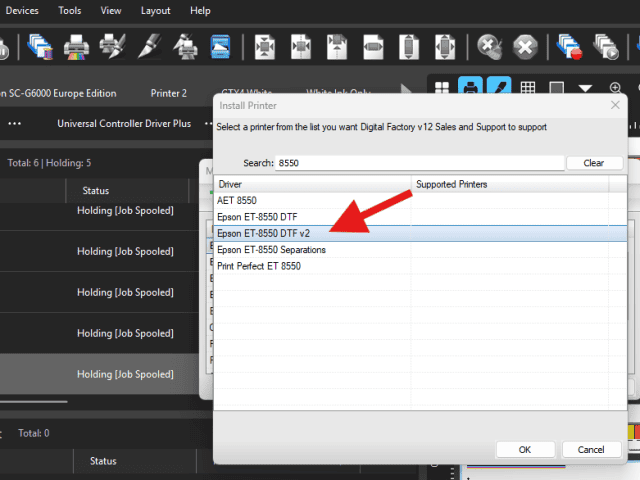
Make sure that you install the v2 driver for the 8550. The v2 will allow changing ink orders. Go to Devices – Manage Devices. Then install printer and type in 8550. This should give you the v2 driver here:
Open the CADlink software and navigate to Queue > Properties. In the left pane, expand Color Layer, then select Processing Options. From here, you can adjust and increase the Underbase settings.
If CADlink asks to save the file instead of printing, it means no valid printer is selected.
Steps to fix:
1. Go to File → Print and select your actual printer queue (not “Print to File”).
2. Open Queue → Properties and confirm the correct printer model and connection.
3. Make sure the printer is online in Windows.
4. If it still happens, delete and re-add the printer queue in CADlink.
5. Restart CADlink (and the PC if needed).
Tip: Re-adding the printer queue fixes this in most cases.
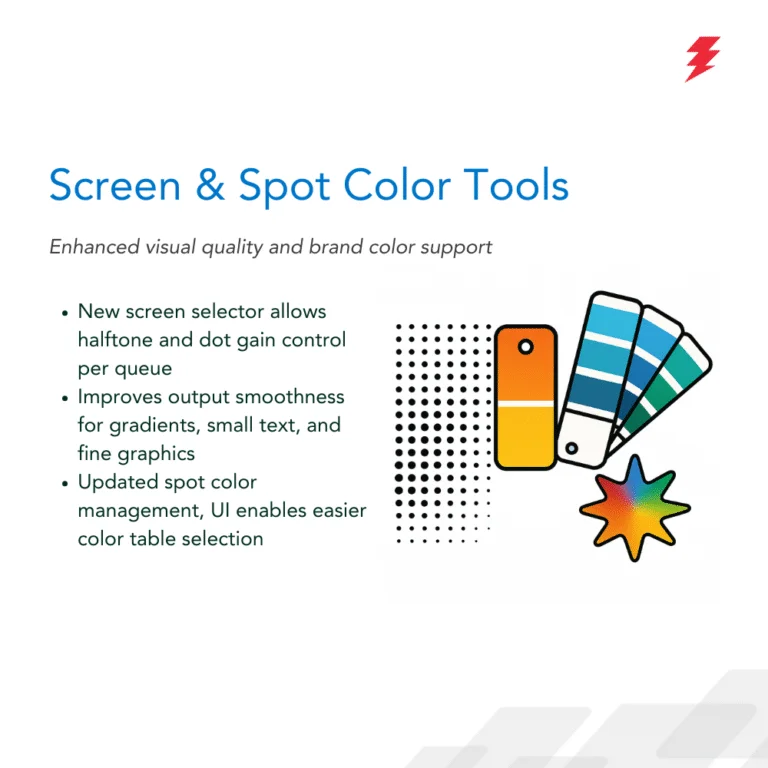
Role of Halftones in V12
Where to Find Settings
Options
When to Adjust
-
-
-
-
-
-
-
-
-
-
There are no reviews yet.
We use cookies to improve your experience on our site. By using our site, you consent to cookies.
Websites store cookies to enhance functionality and personalise your experience. You can manage your preferences, but blocking some cookies may impact site performance and services.
Essential cookies enable basic functions and are necessary for the proper function of the website.
These cookies are needed for adding comments on this website.
Google Tag Manager simplifies the management of marketing tags on your website without code changes.
Statistics cookies collect information anonymously. This information helps us understand how visitors use our website.
Google Analytics is a powerful tool that tracks and analyzes website traffic for informed marketing decisions.
Service URL: policies.google.com (opens in a new window)
SourceBuster is used by WooCommerce for order attribution based on user source.


Reviews
There are no reviews yet.